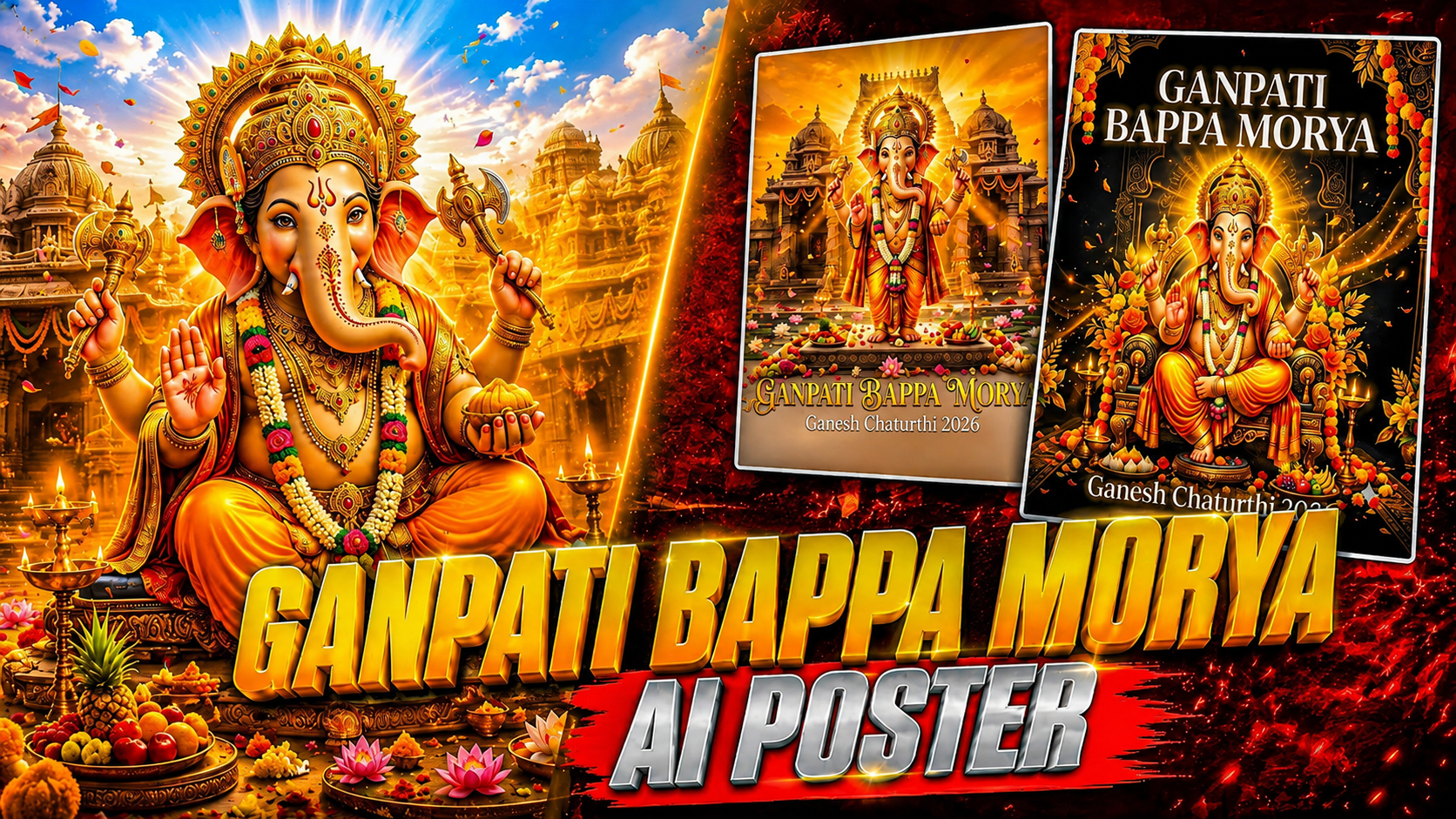
Vinayagar Chaturthi AI Banner Posterr Typically, a photo, an appropriate background, nice font, and some editing experience are needed to create a Vinayagar Chaturthi banner. But with to AI image generating techniques, you can now make a customised festival poster much more quickly. You can create a personalised Vinayagar Chaturthi banner poster by uploading a photo of yourself, your family, friends, company, store, or organisation to Google Gemini and using a thorough prompt. The intriguing thing is that you don’t have to design everything by yourself. Using your submitted photo as a guide, Gemini can use your directions to create a new composition with a festival theme. Image creation and editing in Gemini are currently supported by Google. Gemini can edit an image you upload, add objects, alter the backdrop, or combine several uploaded images to create a new image.
What Is a Vinayagar Chaturthi AI Banner Poster?
Vinayagar Chaturthi AI banner poster means a festive greeting or promotional graphic made with an AI image-generation technique. Instead of beginning from scratch with a blank document in Canva or Photoshop, you upload your photo to Gemini and tell it what kind of poster you’re looking for. For instance, you could ask Gemini to insert your picture in the middle of a traditional Vinayagar Chaturthi celebration, add flowers, lights, decorations and Lord Ganesha and produce a professional festival greeting poster. You can also choose the size of the poster, the background design, lighting, colours, apparel, text placement and overall visual effect. That makes AI beneficial not just for personal festive greetings, but also for shops, enterprises, YouTube channels, social media pages and local organisations.
How to Create a Vinayagar Chaturthi Poster with Gemini
The process is simple.
First, open Gemini and sign in with your Google account. The image-generation feature is available through the Gemini web and mobile experiences, subject to account, age, country and feature availability.
Next, upload the photograph you want to use.
You can use a portrait photograph, family photo, business owner photo or another suitable image. For the best result, use a clear photograph where the person’s face is visible and not heavily blurred.
After uploading the photo, enter a detailed image-generation prompt.
Instead of simply writing “make a Vinayagar Chaturthi poster,” describe the complete visual you want.
For example:
“Create a premium Vinayagar Chaturthi festival greeting poster using the uploaded photo as the main character reference. Keep the person’s face, hairstyle and overall appearance natural and recognisable. Place the person in a beautifully decorated traditional Indian festive environment with Lord Ganesha, marigold flowers, oil lamps, banana leaves, traditional decorations and warm golden lighting. Create a rich red, orange and gold colour palette. Add elegant English text saying ‘Happy Vinayagar Chaturthi’ with clean premium typography. Make the composition suitable for a professional social media and website banner. Photorealistic, highly detailed, natural skin texture, realistic lighting, cinematic depth, clean composition, no watermark, 16:9 aspect ratio.”
Personalised Poster – Use Your Own Photo
Vinayagar Chaturthi AI Banner Poster Personalised Poster – Use Your Own Photo
One of the main pluses of AI picture editing is the option to utilise your own photo as a reference.
For example, if you are designing a Vinayagar Chaturthi welcome for your website, you can upload your photo and ask Gemini to build a festive setting around you. You can also submit multiple images if you wish to mix different references. Gemini can use numerous uploaded photos to construct a new image from those references, says Google. This can be beneficial for designing a family holiday poster, company greeting or team celebration banner
How to Get Better Results from the Prompt
The quality of the final poster depends heavily on how clearly the prompt describes the desired result.
Instead of using a very short prompt, mention the subject, background, composition, lighting, style and text placement.
For example, you can specify that the person should appear on the right side while Lord Ganesha and the main greeting text should appear on the left.
You can also request a clean empty area for adding your own website name or logo later.
Google’s own guidance recommends describing the subject, setting, composition and visual style clearly when creating images.
If the first result is not correct, you do not necessarily have to start again.
You can continue the conversation and ask Gemini to modify specific parts of the image.
For example:
“Keep the same person and background, but make the festival decorations more traditional.”
Or:
“Keep the face unchanged, reduce the decorative elements and create more empty space on the left for headline text.”
Add the Text Carefully
Text is a big feature of a festival poster. You can also request Gemini to include a greeting like “Happy Vinayagar Chaturthi”, “Happy Ganesh Chaturthi” or any message that fits well with your website’s readership. But always review the generated text before publishing. “AI image generators have made huge strides in portraying text, but spelling, spacing and typography still need a once-over. Google now lists better text rendering as one of the characteristics of its newest image-generation models. If the text is incorrect, have Gemini rebuild or modify the image with the right text. For crucial website graphics, you may also build the background and characters with Gemini, and add the final text independently using Canva or another design editor.
Create Different Styles from the Same Photo
The same photograph can be transformed into different Vinayagar Chaturthi designs.
You can request a traditional temple-style poster with brass lamps and flowers.
You can create a modern premium festival banner with a dark background and golden lighting.
You can request a colourful South Indian festival atmosphere with marigold decorations, banana leaves and traditional lamps.
You can also create a simple minimal greeting with a clean background and a single Lord Ganesha idol.
This makes the process useful for people who want several different designs from one photograph.
Important Things to Check Before Publishing
Before using an AI-generated Vinayagar Chaturthi poster on your website or social media account, check the person’s face, hands, clothing, text and background carefully.
If you are using another person’s photograph, make sure you have permission to use the image.
You should also avoid using copyrighted photographs, logos or artwork without appropriate rights.
Google’s Gemini guidance specifically reminds users to respect copyright and privacy rights when generating or editing images.
For business posters, verify every promotional claim before publishing.
conclusion
Combining a quality photo with a thorough Gemini prompt can make creating a Vinayagar Chaturthi AI banner poster much simpler. You can submit your photo and define the desired festival design instead of spending a lot of time manually arranging the background, decorations, and composition. Clear directions typically yield the best results. Discuss the topic, the festival setting, the lighting, the colour scheme, the writing, the composition, and the necessary image size. Additionally, you can keep making changes to the created result until the design satisfies your needs. This method offers a straightforward way to make a personalised Vinayagar Chaturthi poster for a personal greeting, business promotion, or website featured image while maintaining the design’s uniqueness to your own photo and specifications.