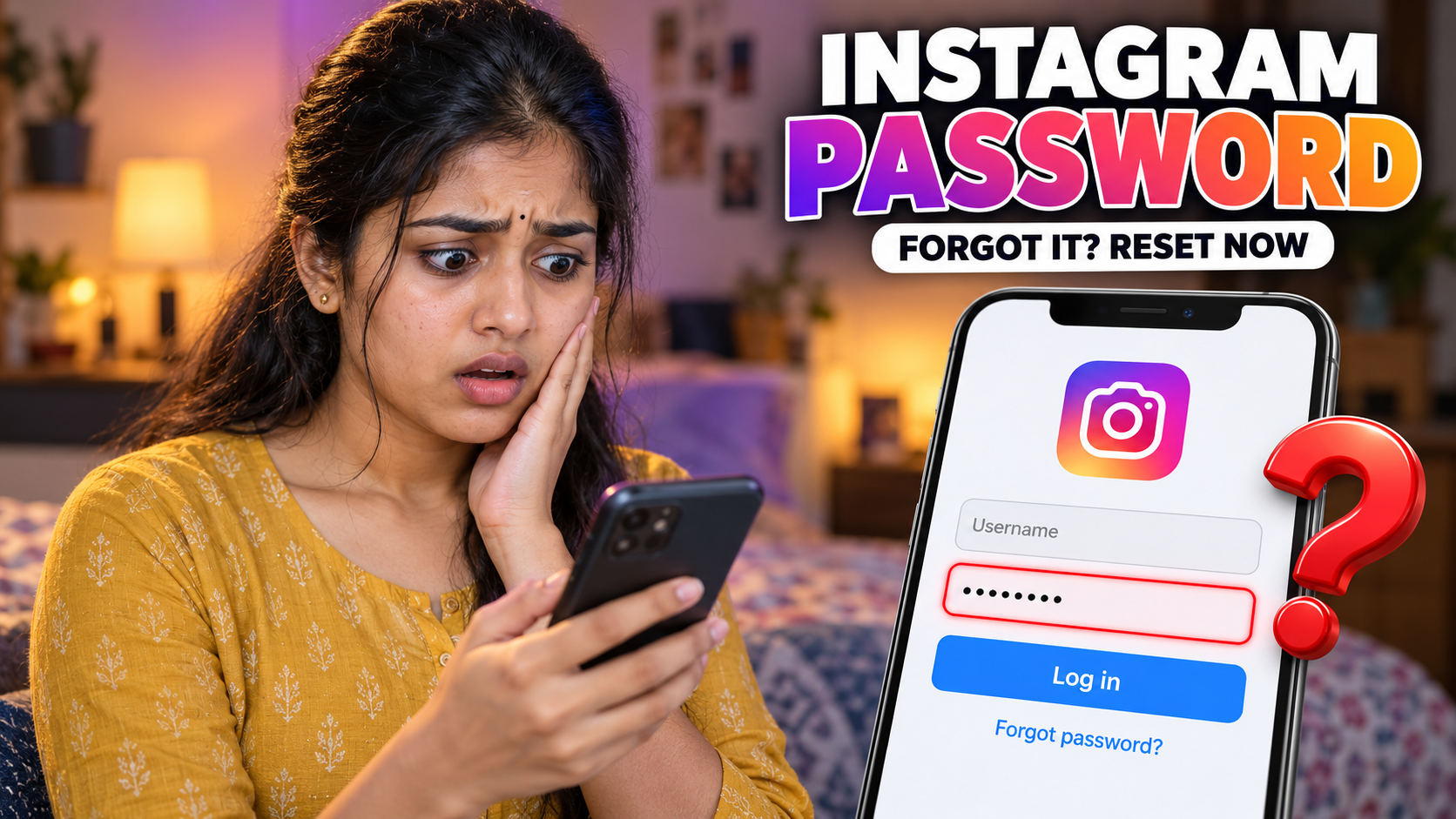
Forgot your Instagram password and now stuck on the login screen? Don’t worry, it happens to almost everyone at some point. The good news is that you can reset Instagram password in just a couple of minutes, as long as you still have access to the email address or phone number linked to your account.
In this guide, I’ll walk you through every method step by step: resetting from the app, from the website, changing it when you are already logged in, and what to do when the reset link doesn’t arrive or you have lost access to your email and phone. At the end, there is a small tool to create a strong new password for your account.
What You Need Before You Reset Instagram Password
Instagram never shows your old password to anyone, not even to you. Instead, it sends a secure reset link or code to the contact details saved on your account. So before you start, keep these ready:
- Your Instagram username, or the email address or phone number you used to sign up.
- Access to that email inbox or that phone, so you can open the link or read the code.
- A stable internet connection.
- A new password that you have not used before on Instagram.
How to Reset Instagram Password on the App
This is the easiest way to reset Instagram password, and it works the same on Android and iPhone.
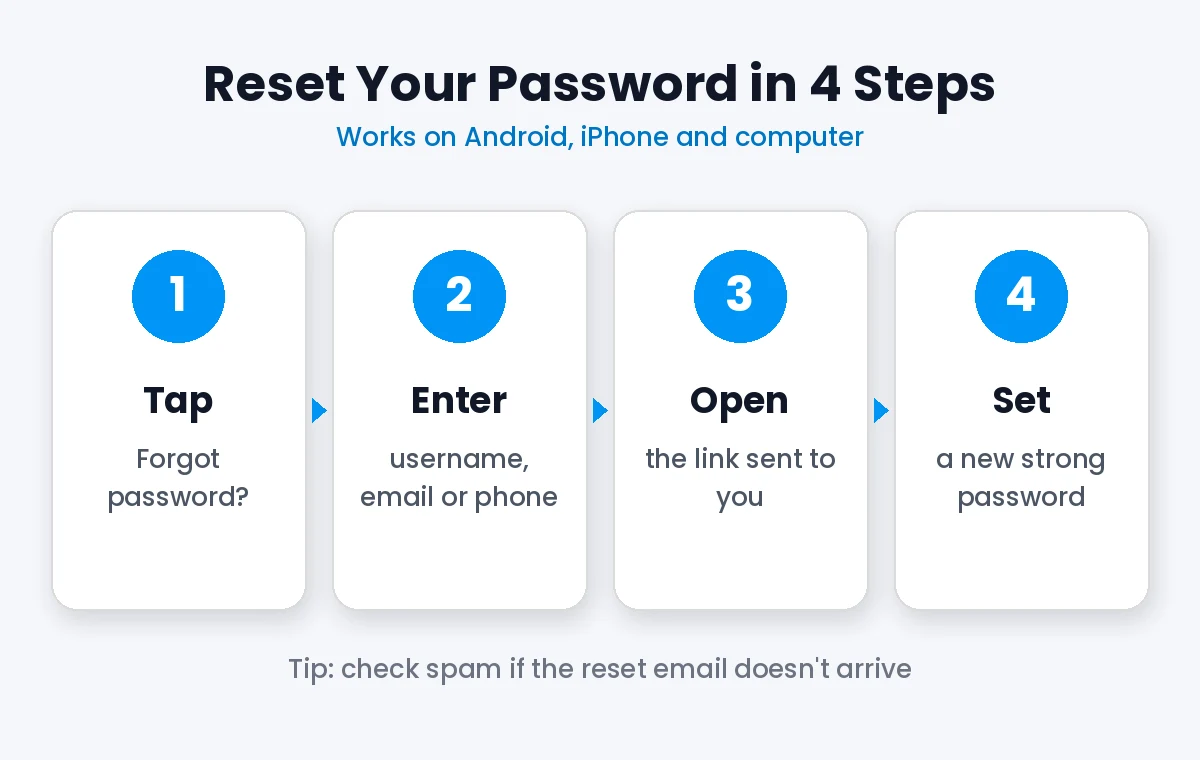
- Open the Instagram app.
- On the login screen, tap Forgot password?
- Enter your username, email address or phone number, and tap Continue.
- Choose where you want the reset link: your email or a text message to your phone.
- If Instagram asks you to confirm it is really you, complete that step.
- Open the email or SMS from Instagram and tap Reset your password.
- Type your new password, type it again to confirm, and tap Reset password.
That’s it. You will be logged in with your new password. If you were logged in on other phones, it’s a good idea to log out from those devices too, which we will cover in a moment.
How to Reset Instagram Password on a Computer
If you use Instagram on a laptop or desktop, you can reset Instagram password from the browser in almost the same way.
- Go to instagram.com in your browser.
- Click Forgot password? below the login box.
- Enter your email, phone number or username and click Send login link.
- Open the link sent to your email or phone.
- Enter and confirm your new password, then click Reset password.
You can also open the official Instagram password reset page directly and skip the first two steps.
How to Change Your Password When You Are Logged In
If you still remember your current password and just want a new one, you don’t need the reset link. You can change it from Accounts Center.
On the App
- Tap your profile picture at the bottom right.
- Tap the three lines menu at the top right.
- Tap Accounts Center.
- Tap Password and security, then Change password.
- Select your Instagram account.
- Enter your current password and your new password twice.
- Tick Log out of other devices if you want to sign out everywhere else, then tap Change password.
On a Computer
Click More at the bottom left, then Settings. Open Accounts Center, go to Password and security, and click Change password. Enter your current password and the new one, and save.
Reset Instagram Password Using Facebook
If your Instagram account is linked to Facebook in Accounts Center, you can also manage your Instagram password from your Facebook account. Open Facebook, go to Settings, then Accounts Center, then Password and security, and pick your Instagram account. This only works if both accounts were already connected before you got locked out.
Reset Link Not Coming? Try These Fixes
Sometimes you try to reset Instagram password, tap the button, and nothing arrives. Before you panic, check these simple things one by one.
Check spam and other folders. In Gmail, look inside Spam, Promotions and Updates. The email usually comes from an address ending in instagram.com or mail.instagram.com.
Wait a few minutes. Emails can take a little time. Requesting the link again and again within a short time can get you temporarily blocked, so wait at least five minutes before trying again.
Try the other option. If email isn’t working, choose SMS instead, or the other way around.
Use the latest link only. If you requested more than once, only the newest link will work. Older links expire.
Update the app. An old version of Instagram can cause errors during reset. Update it from the Play Store or App Store and try again.
Check the email address. If Instagram says it can’t find your account, you may have signed up with a different email or phone. Try your username instead.
No Access to Your Email or Phone?
This is the hardest situation, because you can’t reset Instagram password the normal way without the link. But there are still ways to get back in.
- Ask for more help on the login screen. After tapping Forgot password, look for an option like Can’t reset your password? Instagram will guide you through extra checks to confirm the account is yours.
- Video selfie check. If your account has photos of you, Instagram may ask you to record a short video selfie turning your head in different directions. Use good light and keep your full face in the frame.
- Get back your old number or email first. If you changed your SIM, ask your mobile operator for a duplicate SIM with the same number. If you forgot your email password, recover the email account first, then reset Instagram.
Instagram’s official Help Center has the latest recovery options for your region, and it is the safest place to follow if the normal reset doesn’t work.
Locked Out by Two Factor Authentication?
Sometimes the password is fine, but Instagram asks for a six digit login code and you don’t have it. If you set up an authentication app, open it and use the code shown for Instagram. If the code comes by SMS and you changed your number, use one of the backup codes you saved when you turned on two factor authentication. Each backup code works only once. If you have none of these, tap Try another way on the code screen and follow Instagram’s checks to confirm it is you.
If Someone Hacked Your Account
If your password, email or phone number was changed without your knowledge, don’t use the normal reset first. Go to instagram.com/hacked on your phone and follow the steps there. Instagram will check your identity and help you take back control. Once you are in, change your password, turn on two factor authentication and remove any device you don’t recognise from Accounts Center, then Password and security, then Where you’re logged in.
One important warning: nobody can “find” or “recover” your Instagram password for you. Websites, apps or Telegram groups that promise to show the password of any username are scams. They are usually trying to steal your login or your money. The only real way back in is through Instagram’s own reset and recovery steps.
Which Method Should You Use to Reset Instagram Password?
Tips for a Strong New Instagram Password
Once you reset Instagram password, choose something that is hard to guess. Instagram needs at least six characters, but a longer password is much safer.
- Use at least 12 to 16 characters.
- Mix capital letters, small letters, numbers and symbols.
- Don’t use your name, date of birth, phone number or pet’s name.
- Don’t reuse the same password you use for Gmail, Facebook or banking apps.
- Save it in a password manager, such as the one built into Google or your iPhone, so you don’t forget it again.
- Turn on two factor authentication from Accounts Center for extra protection.
If you want to understand why length matters so much, the password strength page on Wikipedia explains it simply. And once your account is safe again, you can make it look fresh too. Our guide on Instagram chat wallpaper shows how to change the background of your chats, and our post on stylish signature designs has nice ideas for your bio and posts.
REELSTAMIL
Password Instagram
Instagram username
This demo is for educational and illustrative purposes only.
Conclusion
Getting locked out of Instagram feels stressful, but in most cases the fix takes only a few minutes. Tap Forgot password, get the link on your email or phone, and set a new password. If you are already logged in, change it from Accounts Center, and if the link doesn’t come, check spam or switch to SMS.
Once you reset Instagram password, take two more minutes to turn on two factor authentication and save your new password in a password manager. That small step will save you from going through this again.