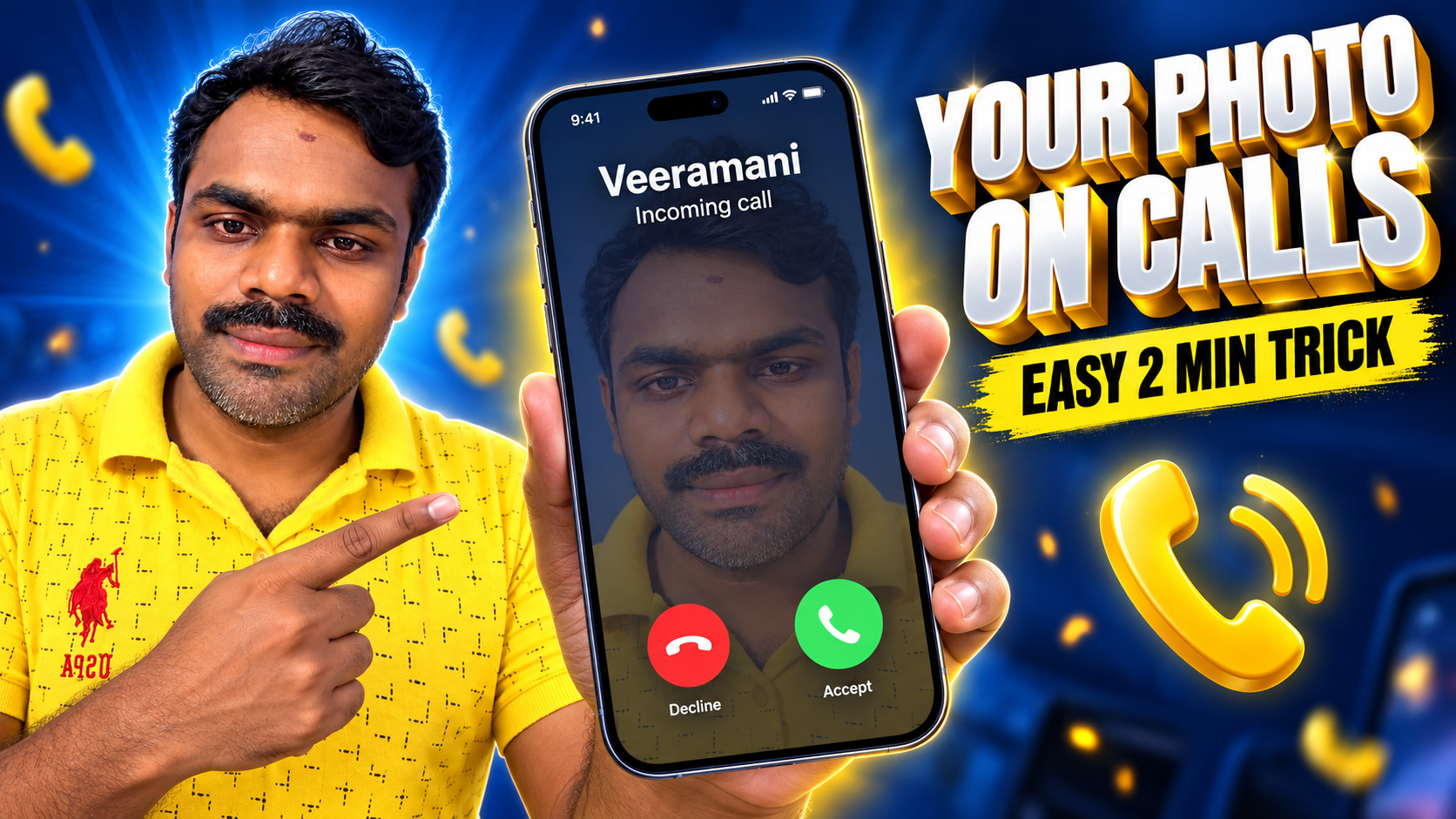
Your home screen has your favourite photo. Your lock screen has one too. But the moment a call comes in, you get the same plain dark screen that every other phone shows. If you have seen reels where someone’s caller screen wallpaper shows their family photo, their kid, or a nice nature picture behind the caller name, and wondered how they did it, the answer is usually a small app called Designer Tools Pro.
Let me walk you through exactly how it works, what opacity to set, what kind of photo looks best, and a few honest things you should know before you turn it on.
How Does a Caller Screen Wallpaper Trick Work?
Designer Tools Pro was not made for wallpapers at all. It is a tool for app designers. Designers use it to place a mockup image on top of the screen so they can compare their design with the real app. The app lets you control how see-through that image is, which is called opacity, and move it up or down.
People simply found a creative use for this feature. If you place your own photo as that “mockup” and keep the opacity low, the photo floats lightly on top of everything on your screen. So when a call comes in, your caller screen wallpaper shows through behind the caller name and buttons.
One thing to understand clearly: this is an overlay, not a real call theme. The photo sits on top of every screen, not only the calling screen. Your WhatsApp chats, settings and other apps will also have the same faint photo on top while the overlay is on. Some people love that look. Others prefer to switch it on only when they want it. Either way, it is good to know before you start.
What You Need Before You Start
Setting up a caller screen wallpaper does not need much. An Android phone, the Designer Tools Pro app from the Play Store, and one good photo. That’s it.
The app is made by a developer called Wixel Store and has more than 10 million downloads. It is free to install, with ads and optional in-app purchases. When you search on the Play Store, check the developer name so you install the right app and not a copy.
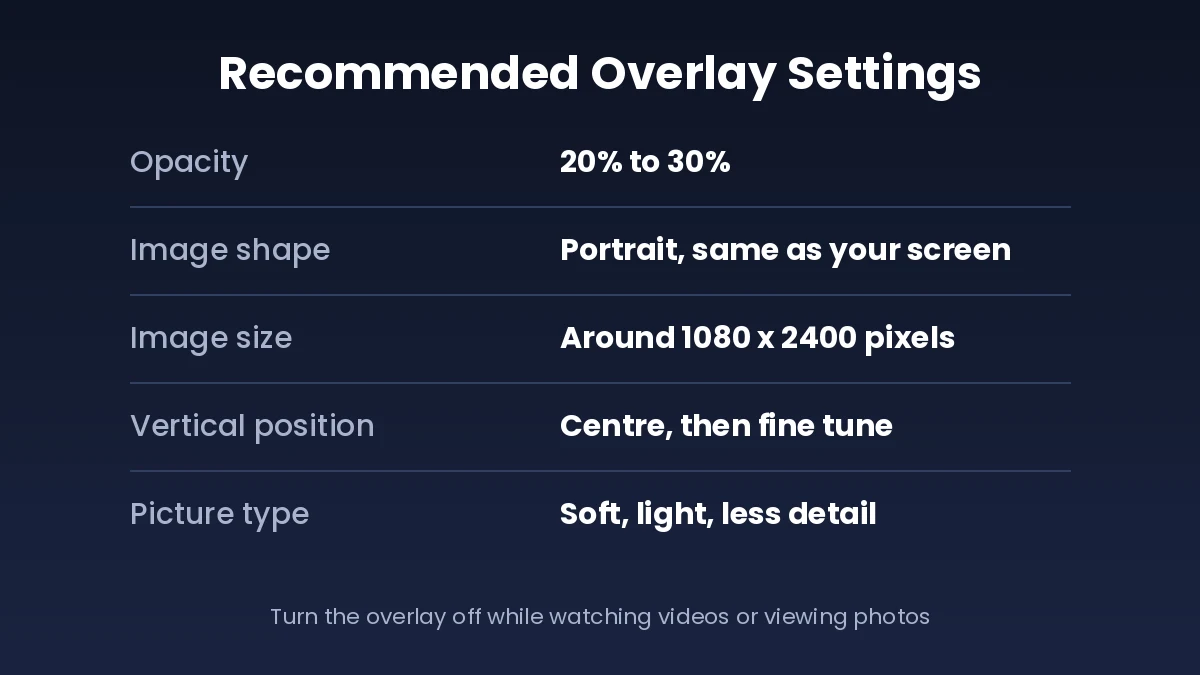
The photo you choose for your caller screen wallpaper matters more than people think. A busy, colourful photo makes caller names hard to read. A soft photo with fewer details works much better. A sunset, a plain sky, a blurred family photo or a simple pattern all look great as a caller screen wallpaper.
Size tip: crop the photo in your gallery to a tall, portrait shape that matches your phone screen before you add it. Most phones today have a screen around 1080 x 2400 pixels, so a photo close to that shape fills the screen without stretching.
Setting Up Your Caller Screen Wallpaper, Step by Step
Here is the full process to set your caller screen wallpaper. The menu names can change slightly between app versions, but the flow stays the same.
1. Install and Open the App
Download Designer Tools Pro from the Play Store and open it. You will see the main tools, including Grid Overlay, Mockup Overlay and Color Picker. For our purpose, we only need Mockup Overlay.
2. Give the Permission It Asks For
To draw on top of other apps, the app uses Android’s accessibility service to show its floating control. Your phone will take you to the accessibility settings. Find Designer Tools Pro in the list, turn it on, and come back to the app. The developer says no data is collected or shared through this permission, but as with any app, only allow it if you are comfortable.
3. Open Mockup Overlay and Pick Your Photo
Tap on Mockup Overlay and choose the option to select an image. Your gallery will open. Pick the portrait photo you cropped earlier. Make sure the orientation is set to portrait.
4. Set the Opacity
This is the most important setting. Drag the opacity slider down to somewhere between 20 and 30 percent. This keeps the photo visible but still lets you read names, numbers and buttons clearly. We’ll talk more about choosing the right number in the next section.
5. Adjust the Vertical Position
If the main part of your photo, like a face, is sitting too high or too low, use the vertical position control to move it. Keep the important part of the picture near the middle of the screen, where the caller photo and name usually appear.
6. Turn It On and Test
Switch the overlay on. To see your new caller screen wallpaper, ask a friend to call you, or call your own number from another phone, and see how it looks. If the text feels hard to read, lower the opacity a little. If the photo is barely visible, raise it slightly.
Best Opacity for Your Caller Screen Wallpaper
Opacity decides whether your caller screen wallpaper looks neat or messy. This is the question most people get stuck on, so here is a simple way to think about it.
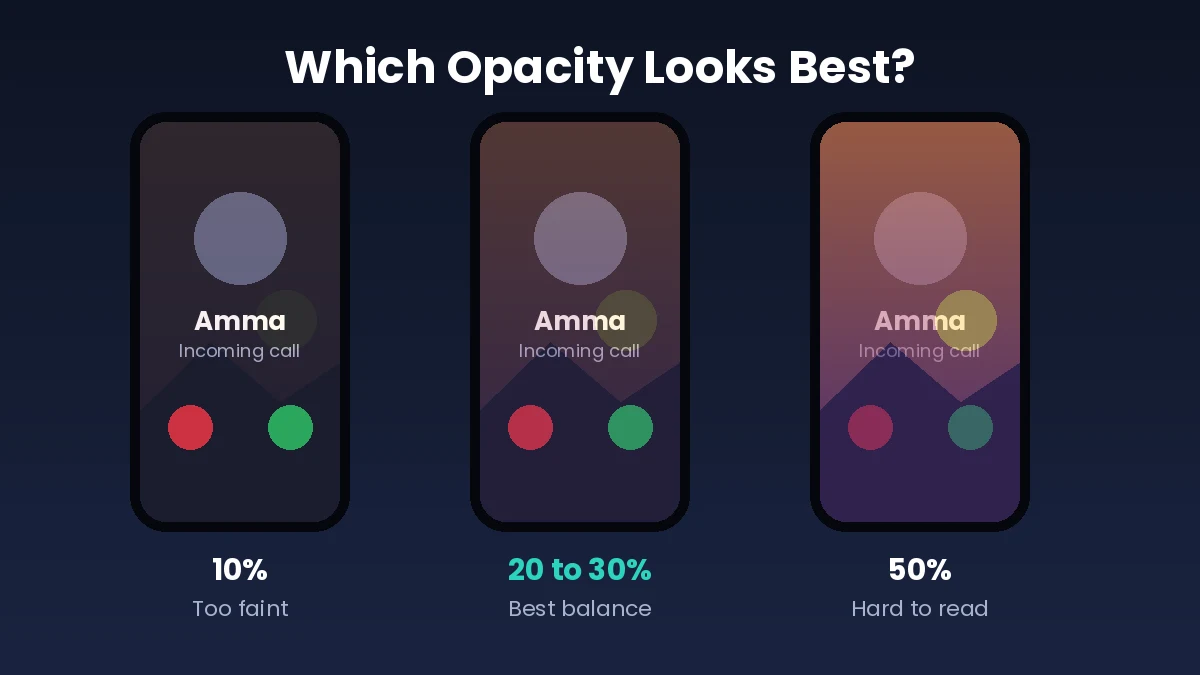
Around 10 percent: the photo is very faint. It looks classy on a dark call screen, but on bright screens you may hardly notice it.
20 to 30 percent: this is the sweet spot for most phones. Your caller screen wallpaper is clearly visible, and caller names, the answer button and the reject button remain easy to read. Start at 25 percent and adjust from there.
40 percent and above: the photo looks strong, but text starts getting lost, especially on white screens in other apps. Your eyes also get tired faster. Unless your photo is very plain, avoid going this high.
A good rule of thumb: if you have to squint even a little to read the caller name, your opacity is too high.
Light photos usually need a slightly lower opacity than dark photos. And if you use dark mode on your phone, the overlay tends to look better, because the photo shows up nicely against the dark background of most call screens.
A Few Honest Things to Keep in Mind
Since a caller screen wallpaper made this way floats over every screen, a few small issues can come up. Knowing them in advance saves you from confusion later.
Photos and videos can look a little hazy while the overlay is on, because your wallpaper sits on top of them. Some users have mentioned this in their reviews too. The easy fix is to turn the overlay off from the app’s floating control before you open the gallery or watch a video, and turn it back on later.
A few users have also said the overlay stayed on screen even after they thought they had switched it off. If that happens, open the app and turn the Mockup Overlay off from inside, or turn off the app’s accessibility permission from your phone settings. Restarting the phone also clears it.
Keep in mind that this app has ads, so you may see them while changing settings. That is normal for free apps.
Also, some banking and payment apps block overlays for safety. If your photo disappears inside such apps, that is the app protecting you, so there is nothing to worry about.
Speaking of permissions, it is always a good habit to check which apps have accessibility access on your phone now and then. If kids in your home use your phone, our guide on the FlashGet Kids parental control app explains how to keep a check on what they install.
Is There a Built-In Option Instead?
Some phones now let you change the call background without any extra app. For example, the Samsung Phone app has a call background setting, and Google’s Phone app on Pixel phones has a calling cards feature where you can set a photo for a contact. If your phone has such an option, it is cleaner, because it changes only the call screen and nothing else.
But many phones don’t have this option, or they let you choose only from a few fixed designs. That is where Designer Tools Pro becomes handy, because it works on most Android phones and lets you use any photo you like.
If you are curious about how phone and computer backgrounds became such a big part of personalising devices, the wallpaper page on Wikipedia has an interesting short history.
Small Ideas to Make Your Caller Screen Look Better
For a cleaner caller screen wallpaper, use a photo with empty space in the middle. Since the caller name and photo sit near the centre, a picture with a clear sky or a plain wall in the middle keeps things readable.
Try a black and white version of your photo. It gives a classy look and never clashes with the green and red call buttons.
Change your caller screen wallpaper for festivals. A Diwali lights photo in October or a Pongal kolam in January makes the phone feel fresh, and it takes just a minute to swap the image in the app.
If you enjoy styling your phone like this, you will probably like our post on Instagram chat wallpaper, where you can change the background of your chats too. And for a personal touch on your notes and photos, check out our guide on stylish signature designs for your name.
Wrapping Up
A custom caller screen wallpaper is one of those small changes that makes your phone feel like your own. With Designer Tools Pro, all it takes is one good portrait photo, an opacity of around 20 to 30 percent, and a quick test call to get it right.
Just remember that it is an overlay that covers every screen, so switch it off when you watch videos or view photos, and keep an eye on the permission you have given. Set it up once, play with a couple of photos, and pick the one that makes you smile every time the phone rings.