
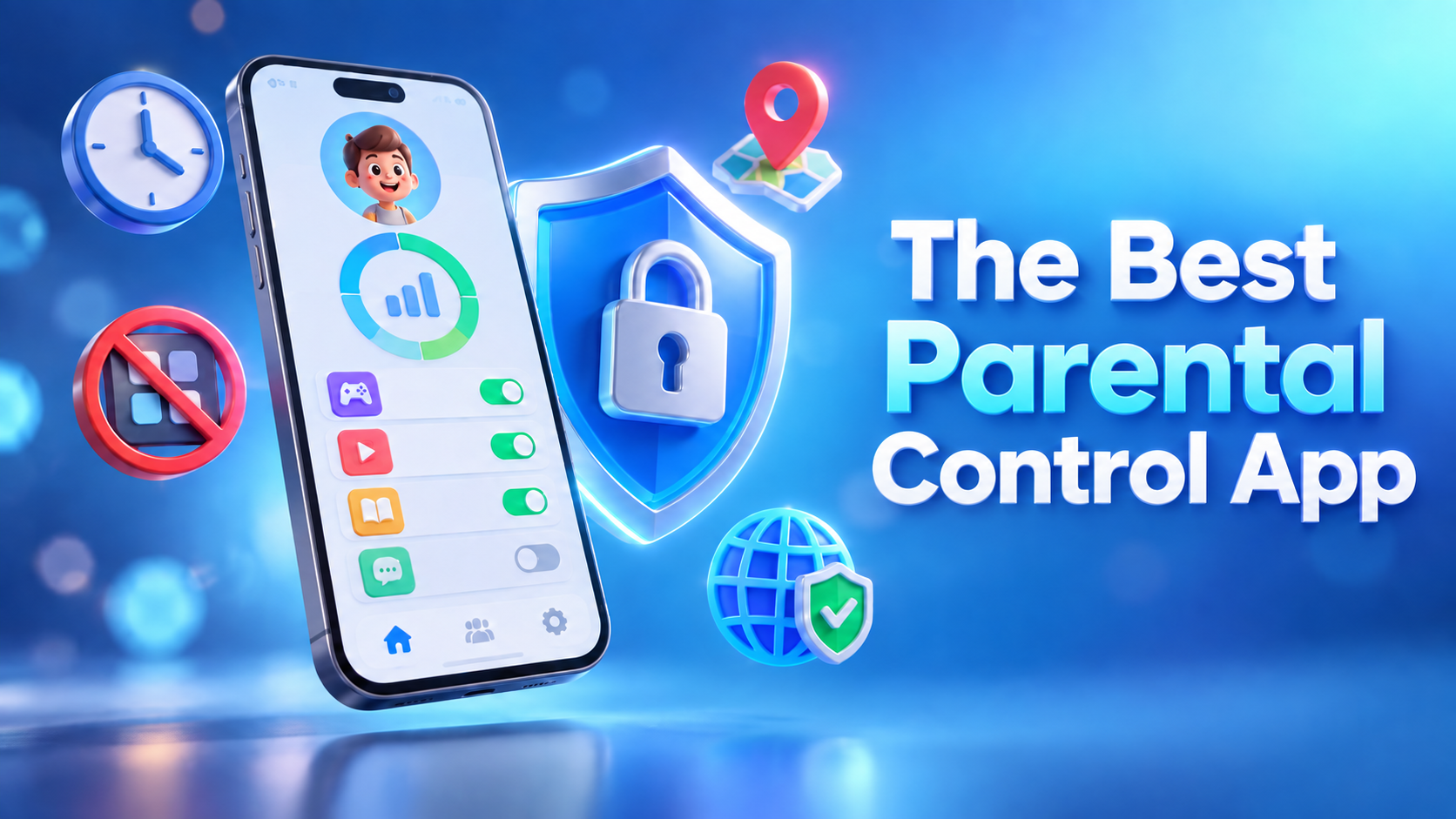
Children today spend a large part of their day on smartphones. Online classes, cartoons, games and YouTube all happen on the same small screen. For parents, that raises a real worry: children under 18 can easily come across unsuitable videos, harmful websites or online scams without anyone noticing.
One practical solution is FlashGet Kids, a parental control app that lets you guide what your child can and cannot do on their phone. In this guide, we cover what the FlashGet Kids app is, its key features, how to set it up step by step, and what to keep in mind before using it.
What Is the FlashGet Kids App?
FlashGet Kids is a parental control app developed by HONGKONG FLASHGET NETWORK TECHNOLOGY. It lets parents manage their child’s phone from their own device. You can decide which apps are allowed, set daily usage limits and block unsafe websites, all remotely.
| Detail | Information |
|---|---|
| App Name | FlashGet Kids: parental control |
| Downloads | 10 million+ |
| Rating | 4.6 ★ (over 100K reviews) |
| Content Rating | Rated for 3+ |
| Price | Free download, with in-app purchases for premium features |
| Platform | Android (Google Play Store) |
(Details as of September 2026)
Why Do Children Need a Parental Control App?
A good parental control app helps protect children from several common risks:
- Age-inappropriate content: harmful videos, images and websites.
- Excessive screen time: too much phone use can crowd out study, sleep and outdoor play.
- Cyberbullying and online scams: messages from strangers and fraudulent links.
- Unapproved app installs: apps installed or deleted without the parent knowing.
9 Key Features of the FlashGet Kids App
1. Screen Time Limits
Create a daily schedule for your child’s phone use. You can restrict access during school hours, homework time and bedtime so the phone doesn’t become a distraction.
2. App Block and App Rules
Block specific apps completely, or set a time limit for how long an app can be used each day. FlashGet Kids also sends you an alert when your child tries to install or delete an app.
3. Web Content Filtering
FlashGet Kids can filter out inappropriate websites. You can customise the browsing mode so your child is guided toward age-appropriate content only.
4. Social Media Content Guidance
The app helps parents guide what children see on popular platforms such as YouTube, Instagram, WhatsApp, Facebook, Snapchat, TikTok and Telegram.
5. App Notification Sync
Notifications from social apps on your child’s phone are synced to your device in real time. This helps you notice early signs of cyberbullying or scam attempts.
6. Location Tracking and Safe Zones
Set places like home, school or tuition class as “Safe Zones.” You’ll get a notification whenever your child enters or leaves those areas.
7. Screen Mirroring and Screen Snapshots
See your child’s screen live on your own phone, or use scheduled screen recording. This helps you spot unsuitable content and then talk with your child about it.
8. Remote Camera and One-Way Audio
This feature helps parents understand what is happening around their child during an emergency. It is intended strictly for your child’s safety.
9. Live Painting
Send hand-drawn doodles or little messages to your child’s phone. It’s a small, thoughtful feature that helps strengthen the bond between parent and child.
How to Set Up FlashGet Kids (Step-by-Step)
- Install the app on your phone: Go to the FlashGet Kids app on Google Play Store, download it and create an account.
- Get the invitation link or code: Choose the option to connect a child’s device, and the app will generate a link or code.
- Connect your child’s phone: Use that link or code on your child’s phone to pair the two devices.
- Grant the required permissions: Allow permissions such as Accessibility, Location and Notification Access.
- Set your rules: Configure screen time, app blocking and web filters based on your child’s age.
Pro Tip: Some users report that the Accessibility permission switches off by itself on certain phones. Turning off Battery Optimization for the app in your child’s phone settings usually prevents this.
Recommended Parental Control Settings by Age
| Age Group | Suggested Settings |
|---|---|
| 5–9 years | Educational and cartoon apps only, social media fully blocked, limited screen time, strict web filter |
| 10–13 years | Time limits on selected apps, alerts for new app installs, Safe Zones enabled |
| 14–17 years | More independence, night-time screen limits, web filter and location sharing |
Important Things to Keep in Mind
- Use it only on your own child’s device: This app is designed for parents to protect their children. Installing it on someone else’s phone without their consent is unethical and may be illegal.
- Talk openly with your child: Explain that the app is there for their safety rather than to spy on them. Being open builds trust.
- Premium costs: Many of the most useful features require a paid plan, so check the pricing before subscribing.
- Read the privacy policy: According to the Play Store data safety section, data is encrypted in transit and you can request that your data be deleted.
- Free alternative: If you only need basic controls, Google Family Link is also worth considering.
FlashGet Kids: Pros and Cons
Pros: Screen time, app blocking, web filtering and location features all come in one app. Setup is simple, and more than 10 million downloads show that many families already use it.
Cons: Full functionality requires a paid subscription. Some users report permission-related issues on certain phone models.
Frequently Asked Questions (FAQ)
1. Is the FlashGet Kids app free?
The app is free to download, but many key features require a premium subscription.
2. Do I need to set anything up on my child’s phone?
Yes. You connect your child’s phone using the invitation link or code generated in the parent app.
3. Can I control YouTube and Instagram with FlashGet Kids?
Yes. You can use app blocking, time limits and content guidance to manage social media apps.
4. Does FlashGet Kids work on iPhone?
This guide is based on the Android version from Google Play. Check the official FlashGet website for current iOS support.
5. Is this parental control app safe to use?
According to its Play Store data safety information, the developer says it does not share data with third parties. Still, it’s wise to review the privacy policy before using the app.
Conclusion
We can’t keep phones away from children forever, but we can make sure they use them safely. A reliable parental control app like FlashGet Kids gives parents peace of mind and helps children build healthy digital habits. Remember that an app is only a tool; open, caring conversations with your child remain the best protection.
👉 Download FlashGet Kids from Google Play Store and set up your child’s phone today.
For more helpful tech tips and app guides, keep visiting ReelsTamil.com!
Disclaimer: This article is for informational purposes only. App features and pricing may change over time.



3 Comments on “FlashGet Kids App: The Best Parental Control App to Keep Your Child Safe Online (2026 Guide)”