You must have seen those Instagram reels where a village grandmother suddenly starts talking, a tiger walks through a Chennai street, or a little girl flies over paddy fields on a kite. Most people assume these take expensive software and weeks of work. They don’t. Many of them are made with just two tools: ChatGPT to create the starting photo, and Google Flow to turn that photo into a moving clip. This is the simplest way to make a Google Flow AI video at home.
In this post, I will walk you through the full process the way I would explain it to a friend sitting next to me. First we make one good photo, then we bring it to life, and finally we join a few clips into a short story you can post. I will also share prompts you can copy, the mistakes that waste credits, and a few rules to keep your content safe.
What You Will Make by the End of This Post
By the end, you will have your first Google Flow AI video, a short clip of about 8 seconds, made from a photo you created yourself. Once you get comfortable, you can make several such Google Flow AI video clips and join them into a 30 to 60 second reel.
Here is the basic idea in one line. ChatGPT gives you full control over how your character and scene look. Google Flow takes that exact image and adds movement, camera motion and sound. Starting from a photo, instead of only typing a description into Flow, keeps your character looking the same across every scene, which is the biggest headache in AI video.
What You Need for a Google Flow AI Video
A ChatGPT account, the free one works for a start. A Google account to open Google Flow. A laptop or a phone with a good internet connection, though a laptop is much easier for Flow. And one simple story idea, even a single line like “an old man feeding pigeons at a temple at sunrise”.
About cost, honestly: ChatGPT lets free users make images with a daily limit. Google Flow runs on credits. Paid Google AI plans come with monthly credits, for example 200 on AI Plus and 1,000 on AI Pro at the time of writing, and a fast 8 second clip uses about 20 credits. Some accounts also get a small number of free daily credits to try it out. Check your credit balance inside Flow before you start, so you know how many clips you can make.
Part 1: Make the Starting Photo in ChatGPT
The photo is the foundation of every Google Flow AI video. If the photo is weak, no video prompt can save it. So spend most of your effort here.
Step 1: Describe Your Character Clearly
Open ChatGPT and describe the person or animal you want, along with the place, the light and the camera angle. Be specific about age, clothes, hair and expression. Vague prompts give random faces.
Create a realistic photo of a 70 year old Tamil grandmother with silver hair in a bun, wearing a faded green cotton saree, sitting on the front steps of an old village house at sunrise. She is smiling softly and holding a brass tumbler of coffee. Warm golden light, shallow depth of field, shot on a 50mm lens, vertical 9:16 frame.
Step 2: Choose the Right Frame Shape
If you are making reels or shorts, ask for a vertical 9:16 image. For YouTube or a website, ask for a landscape 16:9 image. Matching the shape now saves you from awkward cropping later.
Step 3: Fix Small Problems Before Moving On
Look closely at the hands, eyes and background. If something looks off, ask ChatGPT to fix just that part, like “keep everything the same but make her left hand hold the tumbler naturally”. Do not move to Flow with a photo that has six fingers. Flow will happily animate the mistake.
Step 4: Download the Final Photo
Once you are happy, download the image to your device. Give it a simple name like scene1.png so you can find it quickly. If your story has more than one scene, make each scene’s photo in the same chat, so the character stays consistent.
Part 2: Turn the Photo Into a Video in Google Flow
Now for the fun part. This is where your still photo becomes a Google Flow AI video.
Step 1: Open Google Flow and Start a New Project
Open Google Flow in your browser and sign in with your Google account. You can use the button near the end of this post. Create a new project and give it a name.
Step 2: Choose Frames to Video
Flow has a few ways to make a clip. Text to Video works from words alone. Frames to Video starts from an image you upload, and you can also add an ending image if you want the clip to finish on a specific frame. Ingredients to Video lets you add reference images of a character or object. For our method, pick Frames to Video.
Step 3: Upload Your ChatGPT Photo
Upload the photo you downloaded as the first frame. Make sure the aspect ratio setting matches your photo, vertical for reels and landscape for YouTube.
Step 4: Write the Video Prompt
The photo already tells Flow what everything looks like. So your video prompt should only describe what happens: the movement, the camera and the sound. Don’t describe her saree again.
The grandmother slowly lifts the brass tumbler, takes a small sip of coffee and smiles at the camera. A light breeze moves the loose strands of her hair. The camera slowly pushes in towards her face. Sound of birds chirping and a distant temple bell.
Step 5: Pick the Model and Generate
Flow lets you choose between faster and higher quality versions of its Veo video model. The fast option uses fewer credits and is perfect for testing. Once you get a result you like, you can try the quality option for your final clip. Hit generate and wait a minute or two.
Step 6: Review and Download
Watch your Google Flow AI video a couple of times. Check the face, hands and any text in the frame. If it looks good, download it. If not, adjust the prompt and try again. Small changes, like removing an extra action, often fix the problem.
A Simple Prompt Formula for Any Google Flow AI Video
When writing a prompt for a Google Flow AI video, most beginners write either too little or far too much. Here is a simple structure that works almost every time.
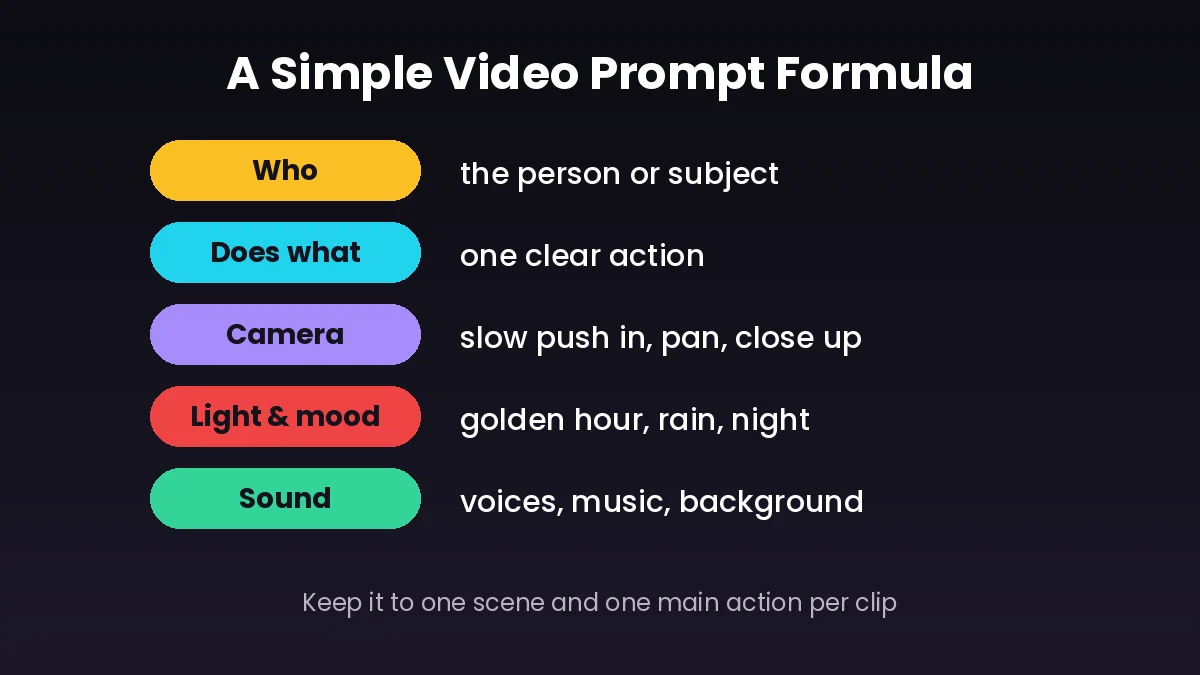
Start with who is in the shot. Then one clear action. Then how the camera moves. Then the light and mood. Finally, the sounds you want to hear. Keep it to one scene and one main action per clip, because each clip is only a few seconds long. If you ask for five things to happen in 8 seconds, the result will look rushed and messy.
Here are a few camera words that work well: slow push in, slow pull back, gentle pan left, close up, wide shot, handheld, and low angle. Mixing one of these into your prompt instantly makes the clip feel more cinematic.
Making a Full Reel From Several Clips
A single Google Flow AI video clip is nice, but a story is what gets people to watch till the end. Plan your reel as four to six short scenes, like a mini storyboard.
For example, for the grandmother story: scene one, she sits on the steps with coffee. Scene two, a small boy runs up and hugs her. Scene three, both of them laugh. Scene four, a wide shot of the house as the sun rises. Make a photo for each scene in ChatGPT, using the same chat so the faces match, then animate each one in Flow.
Flow has a Scenebuilder where you can arrange clips in order and trim them. You can also download all clips and join them in any free video editor on your phone, add music and Tamil text, and export. Keep your reel short and tight. A 30 second reel that people finish watching does better than a 2 minute one they skip.
If you like story based content, take a look at how we presented our story post Son of Thanjai, or the fun mosquito war every granny takes seriously. They give you an idea of how a simple story can hold attention.
Google Flow AI Video Mistakes That Waste Credits
Uploading a photo with problems is the most common Google Flow AI video mistake. If the face or hands are already wrong in the photo, the video will be worse. Fix the photo first.
Describing the image again in the video prompt. Flow already sees the photo. Repeating “old woman in green saree” adds nothing and can confuse the motion.
Asking for too much action. Dancing, jumping, turning and talking all in one 8 second clip rarely works. One action per clip.
Using the highest quality setting for every test. Test with the faster, cheaper option, and use the quality option only for your final version.
Ignoring the aspect ratio. A landscape photo in a vertical project gets cropped badly. Match them from the start.
Keep It Safe and Respectful
Before you post any Google Flow AI video, this part matters, both for your audience and for your account. Do not use photos of real people, especially celebrities, politicians or your friends, without their clear permission. Never make videos that show real people saying or doing things they never did. Never use photos of children in these tools.
When you post realistic AI videos on YouTube or Instagram, use their labels to mark the content as altered or made with AI. Both platforms ask creators to do this for realistic content, and being open about it builds trust with your viewers.
Also know that videos made in Google Flow carry an invisible SynthID watermark, and in India a visible watermark is added automatically too. So these clips can always be identified as AI made. Plan your design so the watermark does not cover anything important.
If you want to know more about the video model behind Flow, the Veo page on Wikipedia has a good overview of how it developed.
Ideas to Try for Your First Few Videos
For your first Google Flow AI video, a festival scene, like a family lighting diyas on their doorstep, works beautifully because of the warm light. You can also make a festival poster with your own photo first, as we showed in our guide on the Vinayagar Chaturthi banner poster with Gemini, and then animate it.
A nature moment, like rain falling on a banana leaf or a peacock opening its feathers, is simple and needs very little action, so it is great for practice.
A short moral story with animals, like a clever crow and a pot of water, is perfect for kids’ content and does well on reels.
A “then and now” idea, like an old Madras street turning into a modern road, is fun to plan with a first frame and a last frame in Flow.
Wrapping Up
Making a Google Flow AI video is much easier than it looks. Create one strong photo in ChatGPT, upload it to Flow as the first frame, write a short prompt about the movement and sound, and you have a moving clip in a couple of minutes. Do that four or five times, join the clips, add some music, and you have a complete reel.
For every Google Flow AI video, start small, test with the faster setting, keep one action per clip, and always use your own ideas and characters instead of real people’s faces. Once you get the hang of it, you will be surprised how quickly your stories come to life.