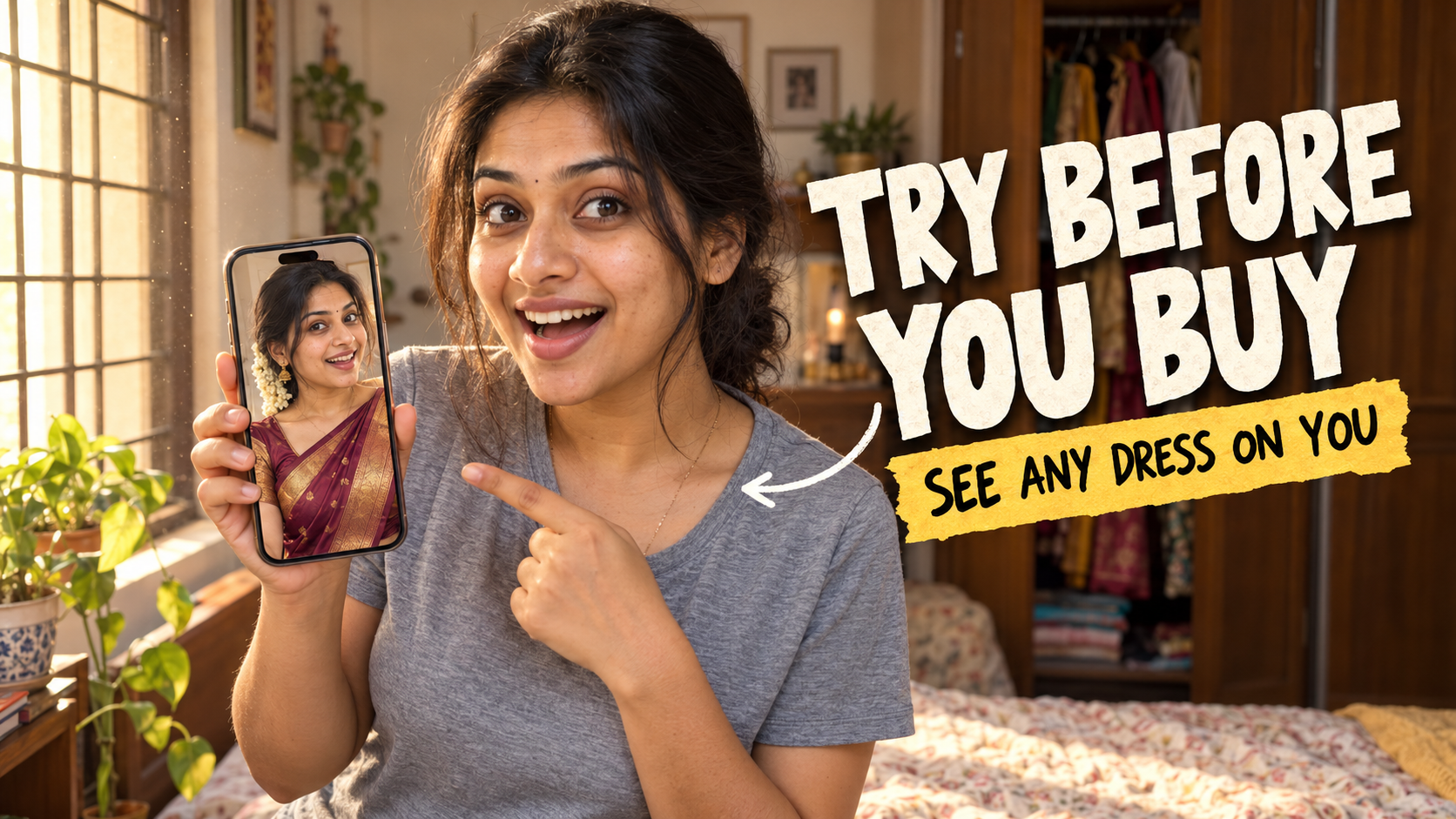
How many times have you ordered a kurta or a saree online, waited four days for it, and then felt it doesn’t suit you at all? Then comes the return request, the pickup that never shows up on time, and the refund that takes another week. What if you could see yourself in that outfit before you even press “Buy”? That is exactly what an AI dress try on lets you do, and you can do it with just one photo of yourself.
In this guide, I will show you how to use Google AI Studio to put any outfit on your own photo, how to get a realistic 3D style result instead of a flat cartoon, which prompts work best, and what you should be careful about. I have kept it practical, so you can follow along on your phone or laptop.
What Does “Dress AI” Actually Mean Here?
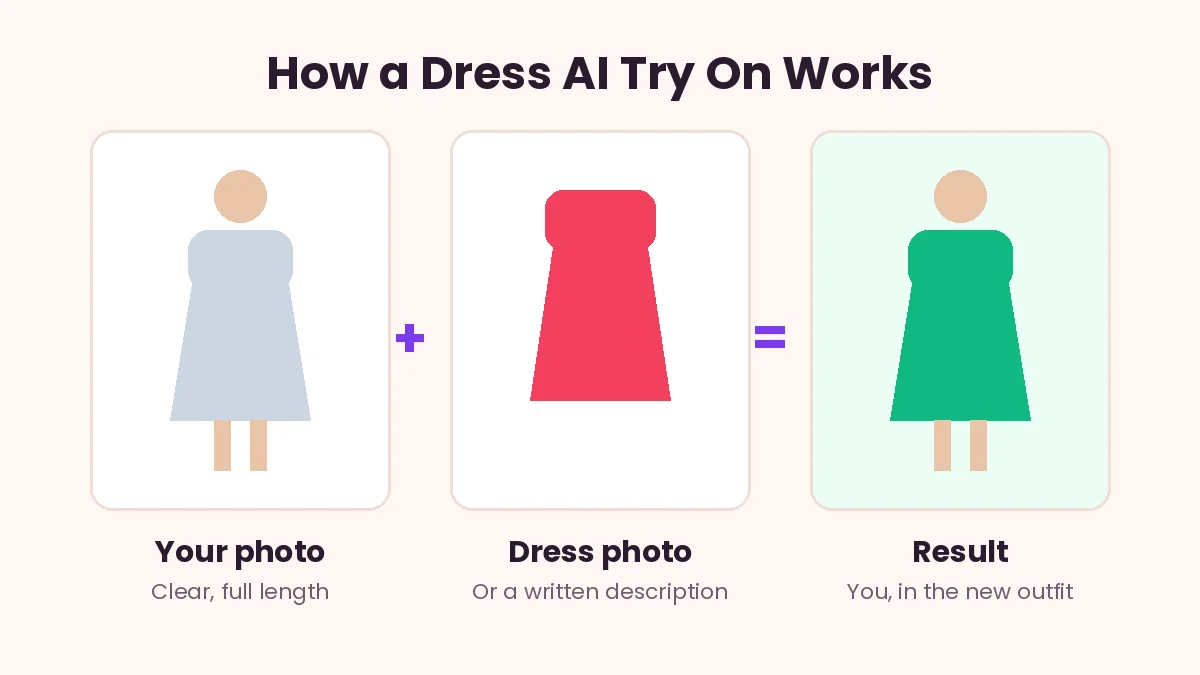
When people search for Dress AI, they usually mean a tool that takes your photo and changes only your clothes, while keeping your face, body shape and pose the same. You give it a picture of yourself and either a picture of the dress or a short description, and it creates a new image of you wearing that outfit.
Google AI Studio is a website from Google where you can use its image models directly. You upload your photo, type what you want, and the model edits the picture. The newer models are surprisingly good at keeping your face the same while changing the outfit, which is the most important part of an AI dress try on.
This is different from the old “virtual trial room” apps that simply pasted a flat dress on top of your photo. Those always looked fake. Today’s tools redraw the whole outfit with folds, shadows and fabric texture, so the result looks much closer to a real photo. If you are curious about how online fitting rooms grew over the years, the virtual dressing room page on Wikipedia has a good background.
What You Need for an AI Dress Try On
You don’t need any special app or editing skills to start an AI dress try on. Here is all you need.
A Google account to sign in. A clear photo of yourself, ideally full length. A photo of the outfit you want to try, or at least a good description of it, like “maroon silk saree with a thin gold border”. And a phone or laptop with a decent internet connection.
One honest note on cost: as of October 2026, image editing inside Google AI Studio may ask you to set up billing, because Google has moved its image models there to paid use. If that happens and you don’t want to pay, you can do the same thing in the free Gemini app, which uses the same family of image models. The prompts in this guide work in both places.
Getting the Photo Right for Your AI Dress Try On
Most bad AI dress try on results come from bad photos, not bad prompts. Spend two extra minutes here and your AI dress try on will look ten times better.
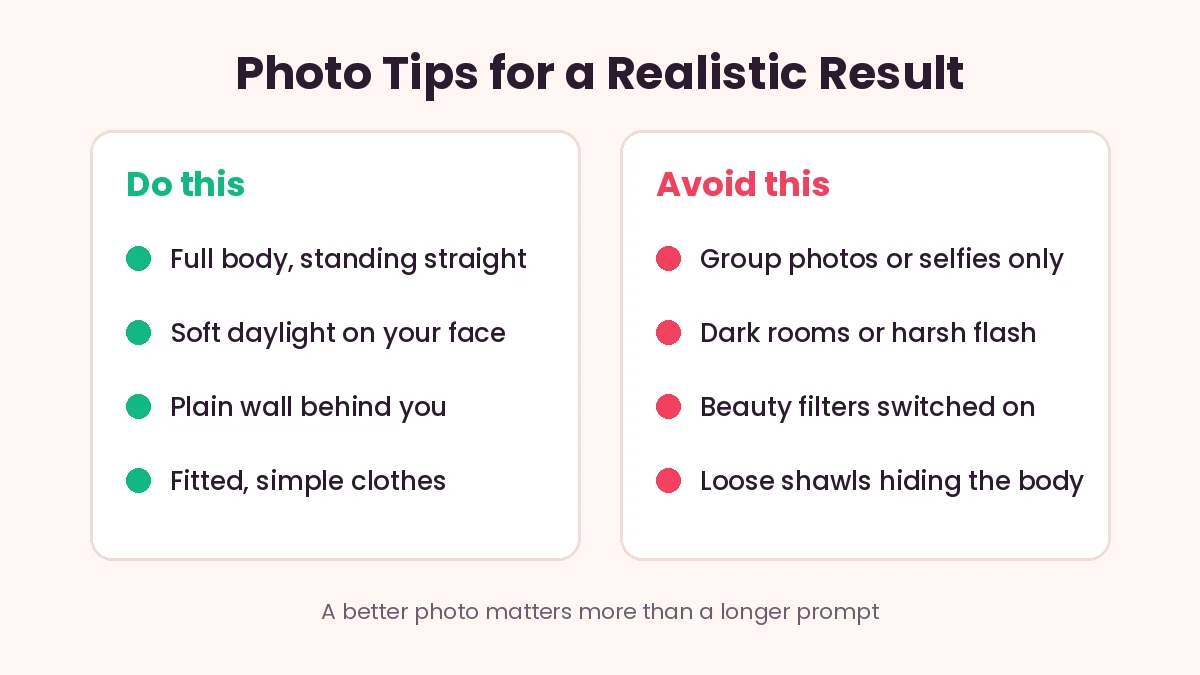
Stand straight against a plain wall in soft daylight. A window during the day works perfectly. Keep your arms slightly away from your body so the tool can see your shape clearly. Wear fitted, simple clothes for the photo. A plain t-shirt and jeans work far better than a loose shawl or a heavy jacket.
Turn off beauty mode and filters in your camera. They change your skin tone and face shape, and the tool will copy those changes into the final image. Avoid group photos. If there are other people in the frame, crop them out first.
A full length photo gives the best results for sarees, lehengas and long dresses. For shirts, tops and kurtas, a photo from the waist up is enough.
How to Do an AI Dress Try On in Google AI Studio
Here is the full AI dress try on process. The screens may change a little with updates, but the flow stays the same.
Step 1: Open Google AI Studio and Sign In
Open Google AI Studio in your browser and sign in with your Google account. You can use the button near the end of this post. Start a new chat from the left menu.
Step 2: Pick an Image Model
In the settings panel on the right, open the model list and choose an image model. These are usually labelled with “Image” in the name. If it asks you to set up billing and you would rather not, switch to the Gemini app and continue from Step 3 there.
Step 3: Upload Your Photo and the Outfit
Click the plus or attach icon near the message box and upload your own photo first. Then upload the photo of the dress, if you have one. Two clear images give much better results than one photo with a long description.
Step 4: Type a Clear Prompt
Tell it exactly what to do. Mention which image is you, which is the dress, and that your face must not change. You will find ready to use prompts in the next section.
Step 5: Check, Fix and Download
Look closely at the face, hands and the edges of the outfit. If something looks off, just reply in the same chat with a small correction, like “make the sleeves full length” or “keep my original hairstyle”. Once you are happy, download the image.
Copy and Paste Prompts That Work Well
You can copy these AI dress try on prompts and change the details to suit your outfit. Keep the line about the face, because that is what keeps the result looking like you.
Basic outfit swap with two photos:
The first image is me and the second image is a dress. Put this exact dress on me. Keep my face, hairstyle, skin tone, body shape and pose exactly the same. Match the lighting of my photo. Make it look like a real photograph.
Saree from a description:
Dress me in a traditional maroon Kanchipuram silk saree with a gold zari border, draped in Tamil style with matching blouse. Keep my face and body exactly the same. Natural daylight, realistic fabric texture and folds, full length photo.
Men’s festive look:
Change my outfit to a cream silk kurta with a light gold pattern and a white veshti. Keep my face, beard, hairstyle and pose unchanged. Soft warm lighting, realistic and sharp, like a professional festival photoshoot.
Office wear check:
Put me in a well fitted navy blue blazer, white shirt and grey trousers. Keep everything else about me the same. Clean office background, natural lighting, realistic photo quality.
How to Get a Realistic 3D Look in Your AI Dress Try On
A lot of people want their AI dress try on result to look rich and three dimensional, like a fashion catalogue, instead of flat. A few small additions to your prompt make a big difference.
Ask for “realistic fabric texture, natural folds and soft shadows”. This makes the cloth look heavy and real instead of painted on. Mention the lighting, like “soft studio lighting from the left” or “golden evening sunlight”. Good lighting is what gives depth.
To see the outfit from different angles, try this:
Show me wearing this outfit in three views side by side: front view, side view and back view. Same face, same body, same lighting, clean studio background, realistic 3D look.
This is very handy for sarees and lehengas, where the back design matters as much as the front. You can also ask for “full body, standing, slight turn to the right” to get a more natural, catalogue style pose.
Where It Can Go Wrong
AI dress try on tools are good, but not perfect. Knowing the common mistakes helps you spot them quickly.
Hands and fingers sometimes come out a little strange, especially if your hands are near the dress. Small prints and fine embroidery may not match the original exactly, because the tool redraws them instead of copying pixel by pixel. Logos and text on clothes often get scrambled.
Most importantly, the image shows how the colour and style look on you, not how the size will fit. An AI dress try on cannot tell you whether a medium will be tight around your shoulders. For fit, still check the size chart and measurements on the shopping site.
If your face changes in the result, start a new chat and add “do not change my face at all” at the start of the prompt.
Use It Respectfully and Safely
This part is important for any AI dress try on. Only use photos of yourself, or of people who have clearly said yes to it. Never edit photos of other people without their permission, and never use these tools on photos of children. Do not create images meant to fool or embarrass anyone.
Also remember that images made with Google’s image models carry an invisible SynthID watermark, so they can be identified as edited. That is a good thing. It keeps the technology honest.
Be careful about which websites you upload your photos to. Stick to official tools from known companies, read the privacy settings, and avoid random apps that ask for gallery access and too many permissions. If you share a phone with family, it is a good idea to clear old uploads from your chat history once you are done.
Smart Ways to Use This While Shopping
Here is how I would use an AI dress try on in real life.
Before a big festival purchase, like a silk saree or a wedding sherwani, try two or three colour options on your own photo. You will often be surprised which colour actually suits you. If you want to go deeper into which shades suit your skin tone, colour analysis is worth learning about, and it pairs very well with this trick.
When shopping online, save the product photo and use it as the second image in your AI dress try on. This gives a much more accurate result than describing the dress in words.
Share the results with family on WhatsApp before buying. It is much easier for everyone to give an opinion when they can actually see you in the outfit.
If you enjoy these kinds of creative photo tricks, you will probably like our guide on making a festival banner poster with Gemini using your own photo. For styling your chats, check out our post on Instagram chat wallpaper, and for a classy personal touch, see our ideas for a stylish signature for your name.
Final Thoughts
An AI dress try on will not replace the trial room completely, but it can save you a lot of wrong orders, return requests and wasted money. All you need is a clear photo, the outfit you like, and a well written prompt that tells the tool to keep your face the same.
Start with one simple outfit, see how it looks, and then play with colours, angles and the 3D style tips above. Just keep it respectful, use only your own photos, and always double check the size chart before you buy. Happy shopping.