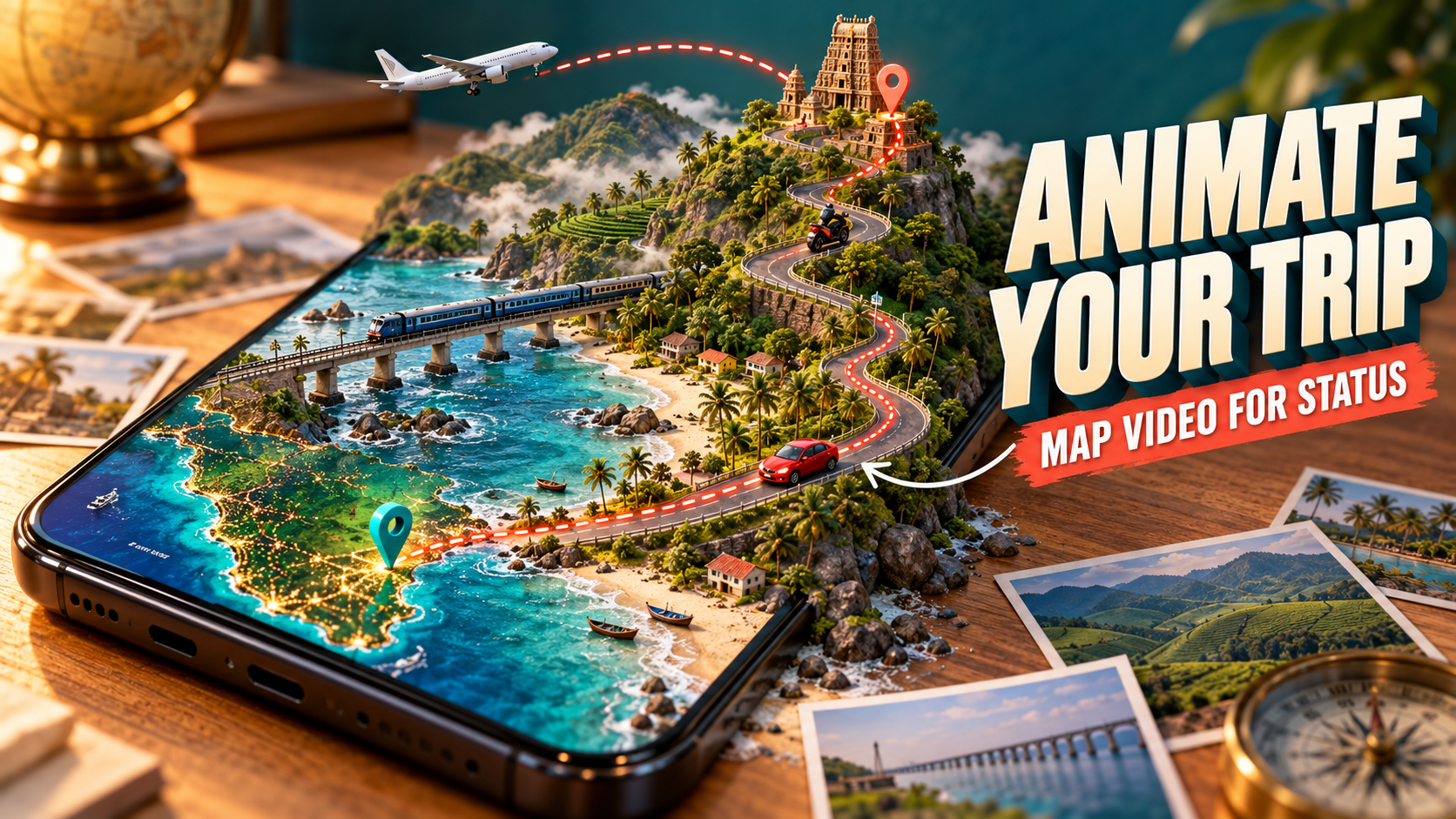
You come back from a weekend trip to Pondicherry or Ooty with a phone full of photos. You post a few, people like them, and that’s it. But lately you may have seen a different kind of status on WhatsApp and Instagram. A small car or bike moves along a 3D map, from Chennai down the coast to Pondicherry, the camera swoops over the route, and the trip photos pop up at each stop. It looks like something from a travel channel.
Most of these are made with a free app called Travel Animator, and you can make one on your phone in about ten minutes.
This post is a full, practical guide to the Travel Animator app. You will see what the app is, what users say about it, where it is available, how to make your first route animation with a car, bike, train or plane, some Tamil Nadu trip ideas to try, and how to download the video and set it as your WhatsApp status.
Travel Animator App at a Glance
Travel Animator is a route map video maker by Lascade, a small app studio based in the UAE that also makes apps like a flight tracker and a measuring tape app. On the Google Play Store, the Travel Animator app has more than 10 lakh downloads and a rating of about 4.4 stars from over 36,000 reviews, which is a strong score for a video editing app. It was last updated in July 2026.
The app is available on both Android phones and iPhones. There is no computer or web version, so everything is done on your phone. That is actually convenient, because the video ends up right in your gallery, ready for WhatsApp or Instagram.
The basic idea is simple. You add the places of your trip, choose a vehicle and a map style, and the app creates a smooth animated video of the vehicle travelling between those places. You can add your own photos at each stop, which turns a simple map into a small travel story.
What Users Like, and What They Complain About
Reading the Play Store reviews gives a clear picture of the Travel Animator app. Many users say it is easy to use and fun, especially picking the vehicle avatar and watching the route come alive. People use it for road trips, bike rides, flights abroad and even daily commute videos.
There are some complaints too, and it is better you know them before you start. Some users were unhappy that the app shows a purchase screen early on. A few paid users reported exports getting stuck, sign in issues with their plan, or small limitations, like not being able to change the vehicle at the starting point or add photos to every stop in some versions. The developer keeps releasing updates, so some of these may already be fixed by the time you try it.
Also note what the Travel Animator app’s data safety section on the Play Store says. It may collect location and app activity data and share some device information with third parties, as many free apps do. When the app asks for location permission, choose “only while using the app” instead of “always”.
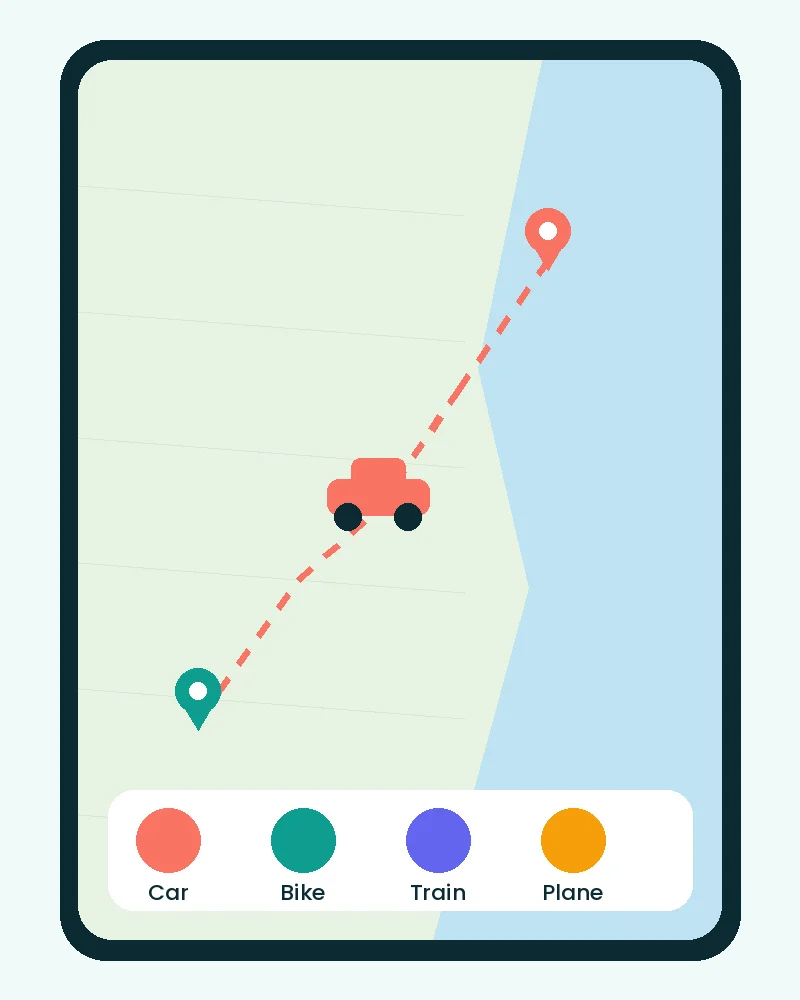
Pick a car, bike, train or plane
The vehicle is what makes these videos fun. A tiny car or bike drives along your real route on the map, and the camera follows it smoothly from start to finish. You can mix vehicles for different parts of the same trip.
Free or Pro: What Do You Actually Get?
You can make full route animations on the free version of the Travel Animator app. You get route planning with multiple stops, a good set of vehicles and map styles, and HD export. The catch is that free videos come with a watermark.
The Pro plan removes the watermark, adds premium vehicles and map themes, adds 4K export and removes video limits. As per one recent review, Indian pricing was around ₹999 for a yearly plan and around ₹1,599 for lifetime access, but prices can change and may vary by region and offers. Always check the exact price on the payment screen inside the app before you pay.
My honest suggestion: start with the free version of the Travel Animator app. Make two or three videos and see if you really enjoy it. If you plan to post travel videos regularly, the Pro plan is worth considering. If it is just for one trip, the free version with a small watermark is perfectly fine for a WhatsApp status.
How to Create a Route Animation in the Travel Animator App
Here is the full Travel Animator app process, step by step. Menu names can change a little with updates, but the flow stays the same.
Step 1: Install and Open the App
Search for Travel Animator on the Play Store or App Store and check that the developer is Lascade. You can also use the button near the end of this post. Open the app and skip or close any offer screens if you want to try the free version first.
Step 2: Choose the Video Shape
Before you start, pick the frame size. For WhatsApp status, Instagram stories and reels, choose the vertical 9:16 size. For YouTube, choose 16:9 landscape. For a normal Instagram post, square 1:1 works well. Choosing this first avoids awkward cropping later.
Step 3: Add Your Starting Point and Destination
Search for your starting place, like your home town or Chennai Central, and add it as the first point. Then add your destination. The app also lets you place pins directly on the map, and you can import a route from Google Maps or a GPX file if you already have one saved. If you have never heard of GPX, the GPS Exchange Format page on Wikipedia explains what it is.
Step 4: Add Stops Along the Way
Most good trips have stops, like a tea break, a temple visit or a beach. Add these as extra points between the start and the end. Each stop makes the animation pause or turn, which makes the video more interesting to watch.
Step 5: Pick Your Vehicle for Each Part
This is the fun part. The Travel Animator app has hundreds of vehicle models, including cars, bikes, buses, trains, planes and boats. You can usually choose a different vehicle for each part of the trip. For example, a train from Chennai to Madurai, then a bike from Madurai to Rameswaram. Mixing vehicles tells the real story of your trip.
Ready for your status in minutes
Once exported, the video sits in your gallery like any other video. Choose the vertical 9:16 size at the start, and it fits WhatsApp status, Instagram stories and reels perfectly without any black bars.
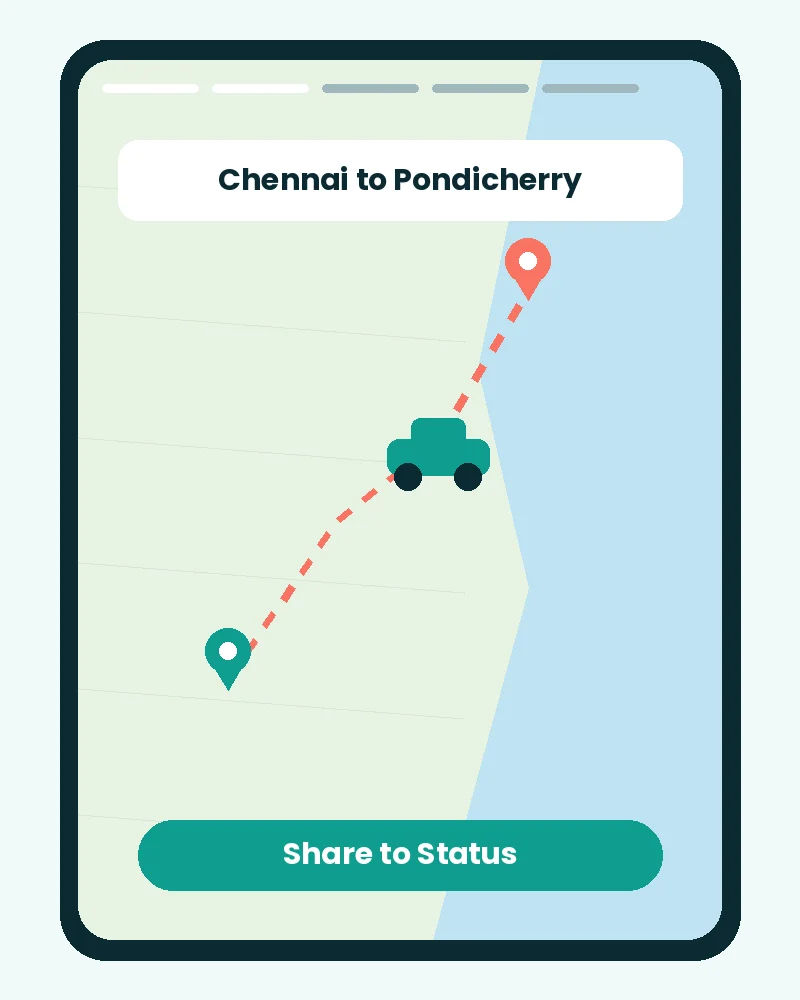
Step 6: Choose a Map Style
The Travel Animator app offers many map themes, from realistic satellite views to clean minimal maps and vintage paper styles. For beach routes like ECR, satellite style looks beautiful because you can see the sea. For hill roads, a 3D terrain style shows the climb nicely. Try two or three and preview each one.
Step 7: Add Photos and Captions
Tap on each stop and add one or two photos from that place, along with a short caption like “Breakfast at Mahabalipuram” or “Sunset at Rock Beach”. When the vehicle reaches that stop in the video, your photo pops up. This one step makes your video look much more personal.
Step 8: Preview and Export
Play the preview to check the speed, camera movement and photos. If the video feels too long, remove a stop or increase the speed. When you are happy, export the video. Free users get HD export, and Pro users can choose 4K. The finished video is saved to your phone’s gallery.
Tamil Nadu Route Ideas to Try
Not sure where to start with the Travel Animator app? Here are some popular Tamil Nadu routes that look great as route animations.
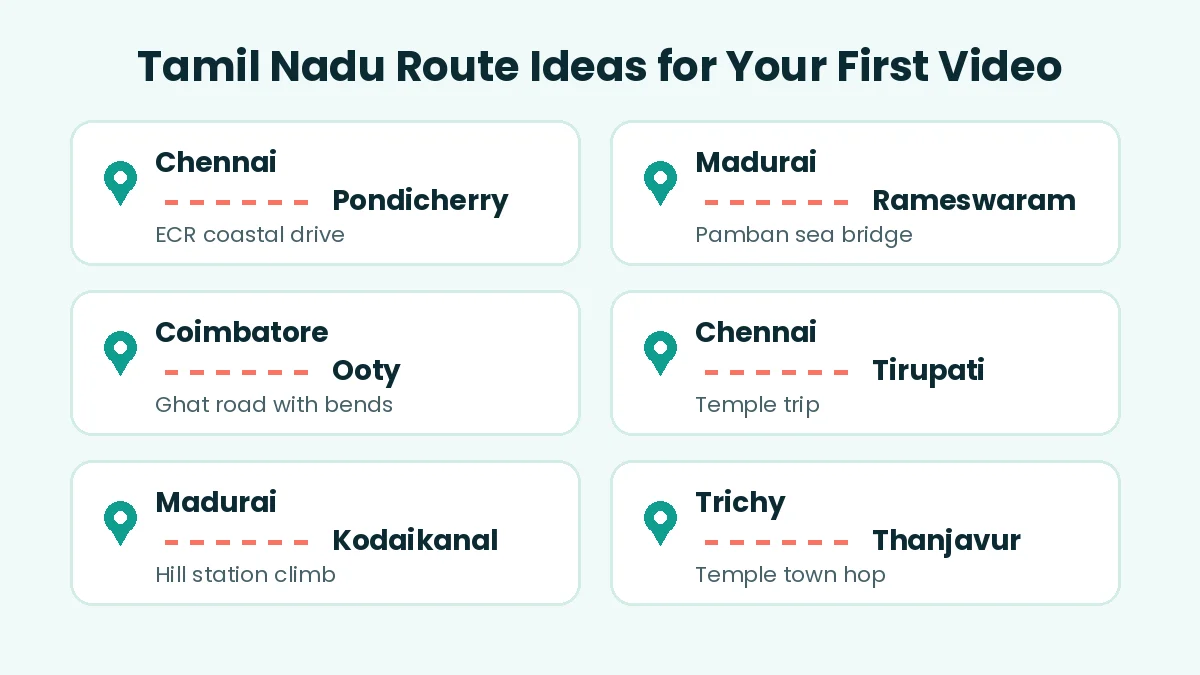
Chennai to Pondicherry by ECR: The East Coast Road runs right along the sea, so the route looks stunning on a satellite map. Add stops at Mahabalipuram and a beach cafe.
Madurai to Rameswaram: The highlight is the Pamban bridge over the sea. Use a train or bus for this part, and add a temple photo at Rameswaram.
Coimbatore to Ooty: The ghat road with its hairpin bends looks amazing in 3D terrain style. A bike works perfectly here.
Chennai to Tirupati: A great choice for family temple trips. If you are planning one, our guide on Tirupati special darshan booking tips will help.
Madurai to Kodaikanal: Another lovely hill climb, especially in misty weather photos.
Trichy to Thanjavur: A short temple town trip, ideal for your first practice video.
For bike groups planning off road rides, you may also like our guide on the Trail Track app for group rides, which helps you track everyone on the trail.
How to Put Your Route Video on WhatsApp Status
Once your Travel Animator app video is in your gallery, putting it on WhatsApp status takes less than a minute.
Open WhatsApp and go to the Updates tab. Tap the camera or the add status button, and pick your route video from the gallery. WhatsApp will show a trim bar at the top. Keep the best part of the video, ideally within about 30 seconds, so it plays smoothly without being cut into many pieces. Add a short line of text or a few emojis if you like, then send.
You can also control who sees it. In WhatsApp’s status privacy settings, you can choose to show it to all contacts, all contacts except a few, or only selected people.
How to Share It on Instagram
For Instagram stories, tap the plus button, choose Story and select the video. Instagram shows longer videos in parts, so a shorter route video looks cleaner.
For a reel, choose Reel and add trending music from Instagram’s own music library. This is better than adding a song inside the video, because Instagram’s library music is licensed for use on the platform. Write a simple caption like “Chennai to Pondy, the long way” and add a few hashtags like #TravelReels, #TamilNaduTourism and #RoadTrip.
If you enjoy styling your chats too, our post on Instagram chat wallpaper shows how to give your chats a fresh look.
Tips to Make Your Route Video Stand Out
Keep your Travel Animator app video short. A 15 to 25 second video is perfect for status. People rarely watch long map videos till the end.
Use real photos at each stop. The map is the base, but the photos are what people actually react to.
Try a “guess where I am going” status. Post the first half of the route before the trip and the full video after you return. Friends love guessing the destination.
Match the vehicle to the trip. A family car for a temple trip, a bike for a hill ride, a train for a long trip. It makes the video feel real.
Use the same map style for a series. If you post every trip with the same style, your status starts looking like your own travel brand.
Stay Safe While Sharing Your Travels
Travel videos are fun, but a little care keeps you and your family safe. Avoid showing your exact house location as the starting point. Start from a nearby landmark or the city name instead. Try to post the full trip after you return home, rather than announcing that your house is empty for a week.
Never make or edit Travel Animator app videos while you are driving or riding. Add the route at a tea stop, or let a passenger do it. And always use the official app from the Play Store or App Store, not modified versions shared on Telegram, which can carry harmful software.
Conclusion
The Travel Animator app turns a normal trip into a small travel film that your friends will actually stop and watch. Add your start and end points, pick a car, bike, train or plane, choose a nice map style, drop in a few photos, and export. In ten minutes, your WhatsApp status looks like it came from a travel channel.
Start with the free version of the Travel Animator app and one short trip, like Chennai to Pondicherry or Trichy to Thanjavur. Once you get the hang of it, plan a bigger route video for your next long trip, and keep your home location private when you share it. Happy travels.