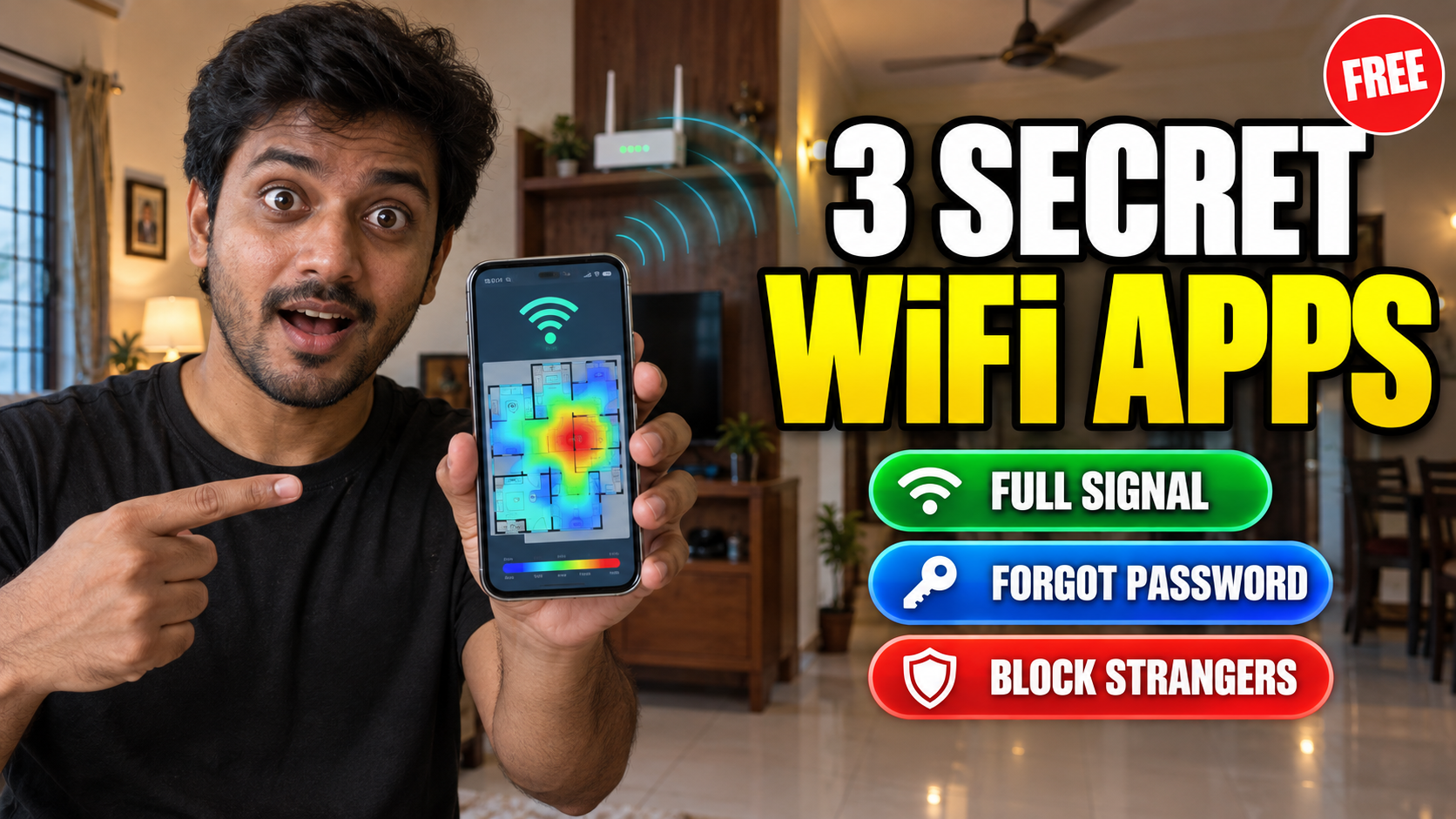
Good WiFi apps can fix three problems that almost every house has. The signal is full in the hall but drops to one bar in the bedroom. Nobody remembers the password the fibre guy typed on installation day. And the net feels slow every evening, even though only two phones are using it.
You do not need to call a technician for any of this. One free app shows which room gets the strongest WiFi signal, a hidden option inside your phone brings back the saved WiFi password, and another app lists every device sitting on your connection. I have written the steps for both Android and iPhone below, so you can try them right now.
1. WiFiman: Find the Room With the Strongest WiFi Signal
Most people keep the router wherever the cable enters the house, usually near the TV or behind the main door. That spot is fine for the hall. But by the time the WiFi signal crosses two brick walls and the kitchen, very little of it reaches the back bedroom.
WiFiman is a free app from Ubiquiti, a known networking company, and it has no ads at all. It shows your live signal strength and can even draw a colour map of your house while you walk. A few tabs inside are meant for Ubiquiti’s own routers. You can ignore those.
How to check WiFi signal room by room
- Install WiFiman from the Play Store and allow location access. Android links WiFi scanning to location, so the app cannot read the signal without it.
- Stand near the router, open the Signal tab and note the number. It shows in dBm, something like -40.
- Walk to each room, stand in the middle for a few seconds and note the number again.
- For the colour map, open the heatmap option, hold the phone in front of you and walk slowly around the house. Tap Done when you finish.
How to read the signal numbers
The number is always negative, and closer to zero means a stronger signal.
- -30 to -55 dBm: excellent. Video calls and HD streaming run without any trouble.
- -56 to -67 dBm: good. YouTube, Netflix and online classes work fine.
- -68 to -75 dBm: weak. Pages load late and video calls start freezing.
- Below -75 dBm: practically a dead zone.
On the heatmap, blue is strong, yellow is average and red is weak. Many homes have one red corner that nobody suspected.
Once you know the weak room, try the free fixes first. Lift the router off the floor and keep it at chest height on a shelf. Move it away from the fridge, the inverter battery and the steel almirah, because metal and water block WiFi badly. If that room is still red after this, a mesh node or a WiFi extender is the right spend, not a costlier plan.
If the slow speed is on mobile data and not on WiFi, that is a different problem. Our guide on how to increase your internet speed from 4G to 5G covers the 5G switch and an app that shows your mobile tower signal.
For iPhone users: Apple does not let most apps read the exact signal number, so WiFiman on iPhone is mainly useful for its speed test. Apple’s own free AirPort Utility app is the way around this. Install it, open iPhone Settings, go to AirPort Utility and switch on Wi-Fi Scanner. The app will then show the signal in dBm.
Android users who like working on a floor plan can also try WiFi Heatmap from the Play Store. You draw or upload your house plan, tap where you are standing in each room, and it builds the map from those points.
2. Forgot the WiFi Password? Get It Back From Your Phone
This one happens in every family. The broadband person set the WiFi password on installation day, someone wrote it on a paper, and that paper is now missing. Then a cousin visits, and the first question is, “WiFi password enna?”
Here is the good part. If your phone is connected to that network now, or was connected earlier, the password is already saved inside it. You only need to bring it out.
On Android phones (Android 10 and above)
- Open Settings and tap WiFi. On some phones this sits under Network & Internet, then Internet.
- Tap the gear icon next to your WiFi name, or tap the name itself.
- Tap Share or the QR code icon, then enter your screen lock.
- On Pixel and many other phones, the password appears in plain text right below the QR code.
Samsung phones usually show only the QR code. Take a screenshot of it, open that screenshot in Google Lens (it is inside Google Photos and the Google app), and Lens will show the network name and the WiFi password in text. Google’s Android Help page on WiFi sharing lists the same Share steps.
On iPhone (iOS 16 and above)
Open Settings, tap WiFi, then tap the small (i) button next to your network. Tap the Password field and open it with Face ID or your passcode. On iOS 18 and newer, the separate Passwords app also has a WiFi section that lists every network your iPhone has joined. Apple’s support page shows the same steps with screenshots.
If no phone in the house remembers the WiFi password, check the sticker under the router. That default password still works if nobody changed it. Otherwise, log in to the router settings page (explained in the next section) and set a new one.
3. Fing: See Who Is Using Your WiFi
Slow internet in the evening is not always the provider’s fault. Sometimes the password has travelled through two or three people, and now a neighbour’s phone, tab and laptop are all running on your plan.
Fing is one of the most used WiFi apps for checking this, and the scan is free. It lists every device connected to your network with its name, brand and MAC address, so your TV, set-top box and phones show up separately.
How to find an unknown device
- Install Fing from the Play Store, connect to your home WiFi and run a network scan.
- Go through the list and mark what you recognise: phones, TV, set-top box, laptop, CCTV, smart bulbs.
- If one entry is confusing, switch off WiFi on a family phone and scan again. Whichever entry disappears was that phone.
One thing confuses a lot of people here. Newer Android phones and iPhones use a private, random MAC address for each network. So your own mobile can show up as “Unknown” in the list. Do the switch-off test before you panic.
How to remove an unknown device for free
Fing does have a block button, but blocking is part of its paid plan. The free method is through your router.
- Open Chrome and type your router address. Common ones are 192.168.1.1 and 192.168.0.1, and JioFiber routers use 192.168.29.1. The login details are usually printed on the router sticker.
- Look for a section named Connected Devices, DHCP Clients or Device List.
- Copy the MAC address of the stranger and add it under MAC Filter or Block List.
- Change your WiFi password, and pick WPA2 or WPA3 security if the router offers it.
Do not skip the last step. Blocking stops that one device, but the person still knows your password and can join again from another phone. A new password ends the matter. JioFiber users can also see the connected device list inside the JioHome app.
Which of These WiFi Apps Should You Try First?
Go by the complaint at home. If everyone says the net is slow, start with Fing. If the complaint is “signal is not coming in my room”, start with WiFiman. The password trick takes one minute, so learn it anyway. It will save you the next time guests come.
| Problem | What to use | Cost |
|---|---|---|
| Weak signal in some rooms | WiFiman (AirPort Utility on iPhone) | Free |
| Forgot WiFi password | Phone Settings, Google Lens, iPhone Passwords app | Free |
| Unknown devices on WiFi | Fing scan + router settings page | Free (Fing blocking is paid) |
Common Doubts About These WiFi Apps
Are these WiFi apps safe to install?
Yes. WiFiman is made by Ubiquiti and Fing by Fing Limited, both established network companies. Google Lens and the Passwords app come from Google and Apple. Still, download them only from the Play Store or App Store, never from APK links forwarded on WhatsApp.
Can I see the password of a WiFi I never connected to?
No. Your phone only stores passwords of networks it has joined. Any app that claims otherwise is selling you ads, not a feature.
Does moving the router really make a difference?
In most homes, yes. A router kept on the floor behind the TV loses a good part of its reach. Raising it and moving it closer to the centre of the house often fixes a weak bedroom without spending a single rupee.
How often should I check the connected devices?
Once a month is enough for most homes. Also check whenever the speed suddenly drops, or when the router lights keep blinking even though nobody at home is using the net. If most devices on the list are your children’s phones and tabs, our FlashGet Kids parental control app guide shows how to set screen time limits on them.
Before You Call the Broadband Guy
Most WiFi complaints at home come down to one of three things: a bad router spot, a lost password, or someone extra on the connection. With the WiFi apps above, each one takes about ten minutes to sort out.
Bookmark this page so the password steps are handy the next time someone asks. For more phone tricks and useful app guides, see the Apps and AI Tools section on ReelsTamil.